

This tutorial is for a deployed app. Connecting uses the app’s live web address and its OAuth provider. If you haven’t deployed your app yet, see Publish an App.
Prerequisites
- An app that’s already deployed.
- Permission to manage API & MCP access on that app. If you don’t see API & MCP Access in your user menu, ask an admin to grant you access.
- A Claude account on a plan that supports custom connectors (Pro, Max, Team, or Enterprise). Custom connectors aren’t available on the free plan.
Register an application in your app
1
Open your app's API & MCP Access page
Open your deployed app in a browser. Click your avatar in the top-right corner, then click API & MCP Access.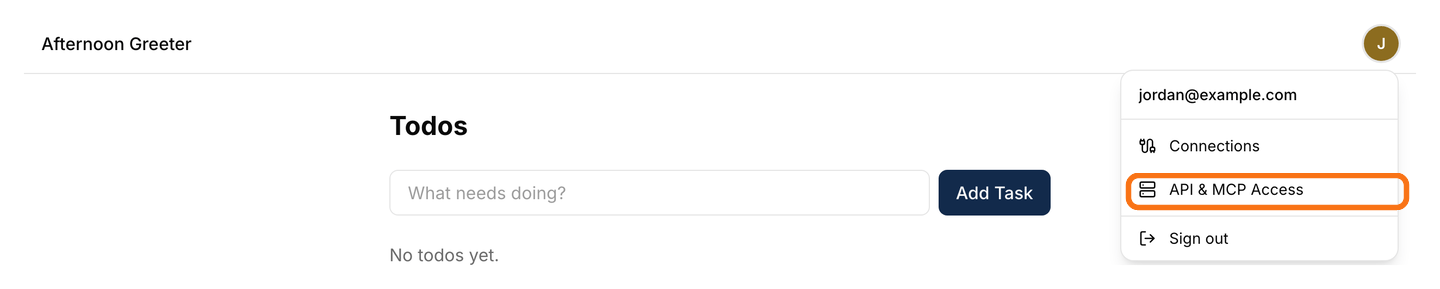
2
Copy your MCP server endpoint
The API & MCP Access page shows two connection URLs. To connect Claude, copy the one in the MCP server endpoint card (labeled for MCP clients). The API base URL card below it is for calling the app’s API directly — you don’t need it for this tutorial.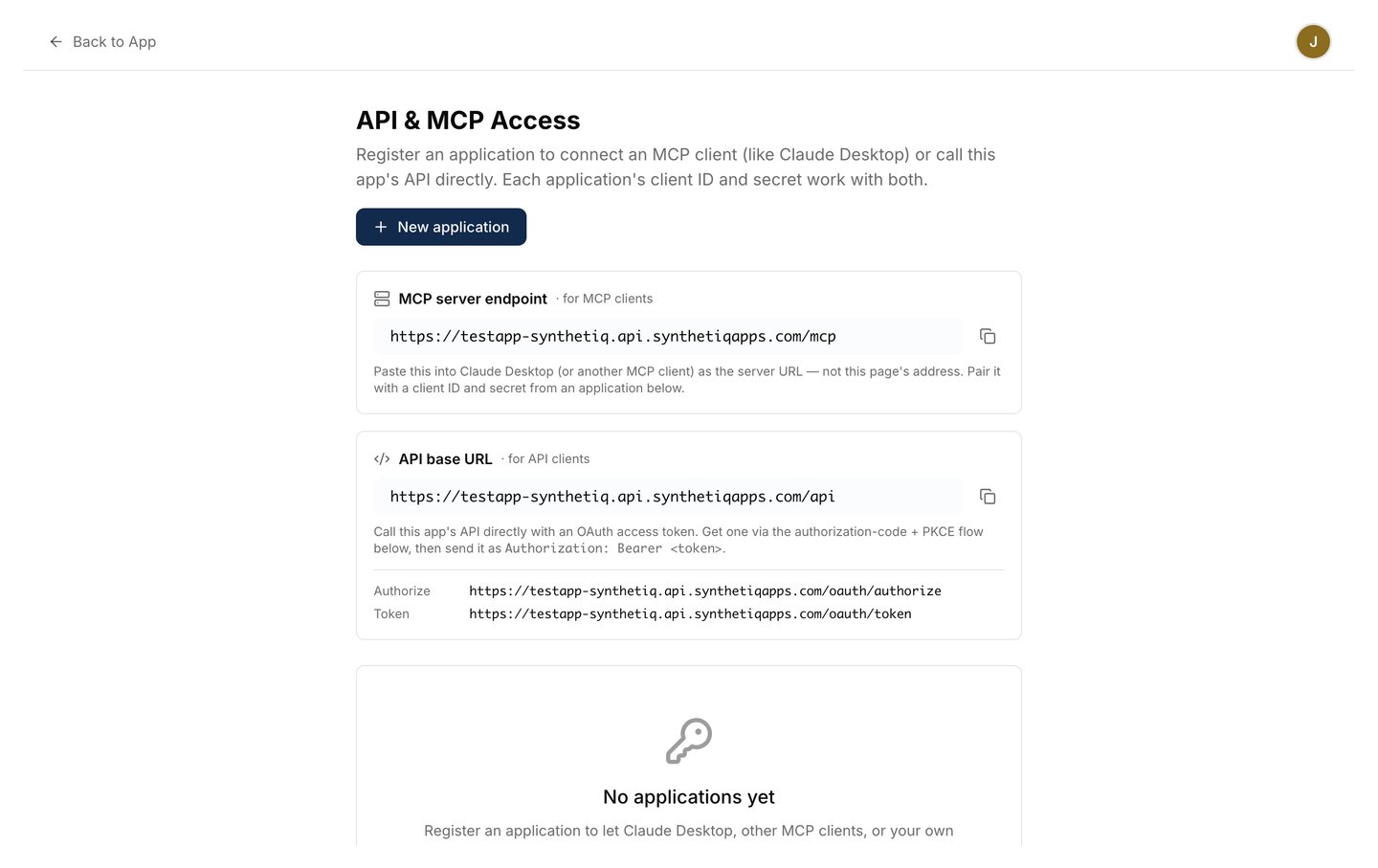
3
Register an application
Click New application and fill in the form: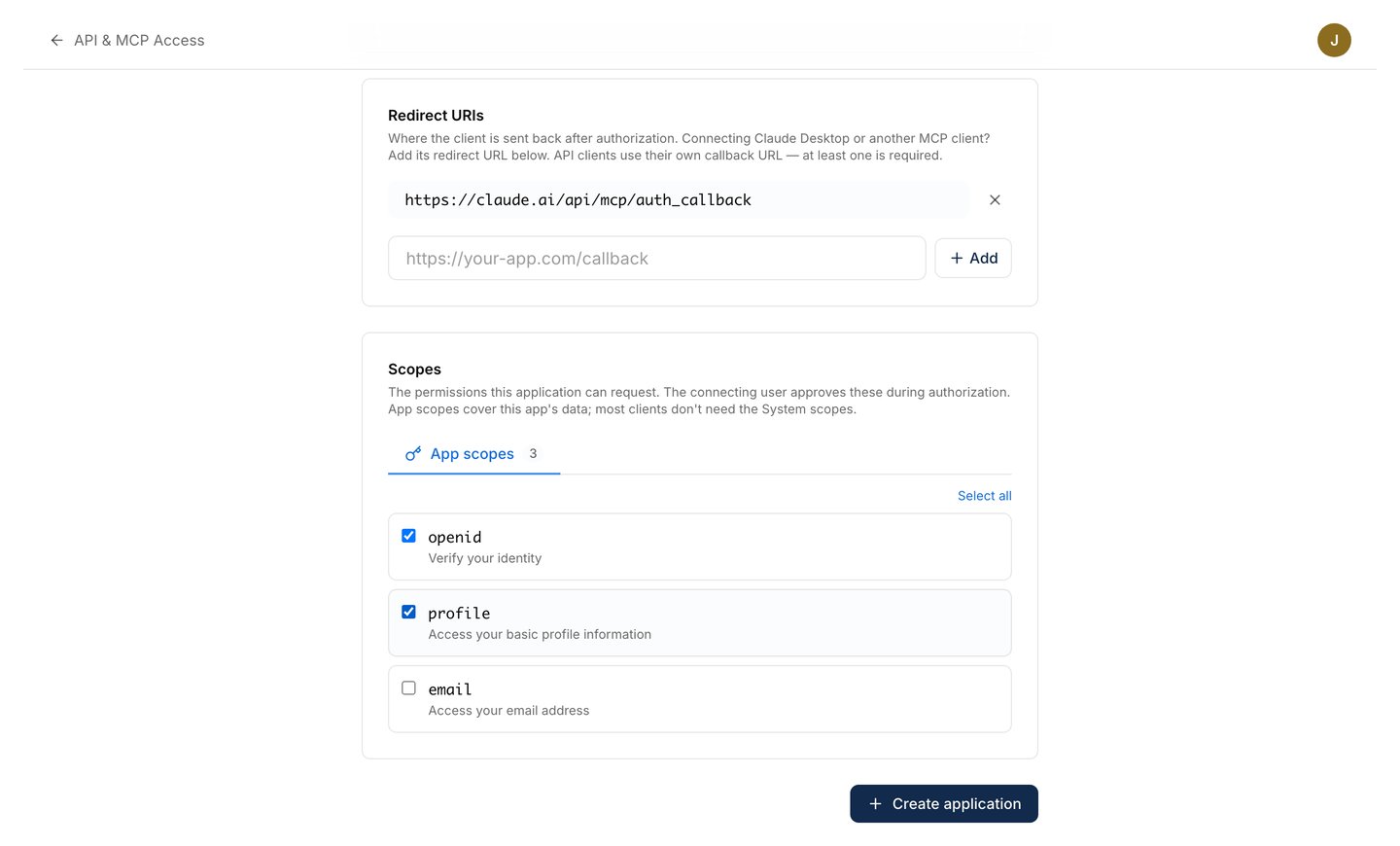
- Name — a label for this connection, such as
Claude. - Redirect URIs — click Add Claude’s redirect URL. This fills in the address Claude uses to finish connecting. At least one is required.
- Scopes — on the App scopes tab, tick the permissions you want Claude to have. The System scopes tab covers admin features that most clients don’t need. When in doubt, start with a couple and add more later.
4
Save your Client ID and Secret
The Application created screen shows a Client ID and a Client Secret. Copy both now and keep them somewhere safe — the secret is shown only this once. (You can create a new secret later from the application’s settings, but that disconnects anything already using the old one.)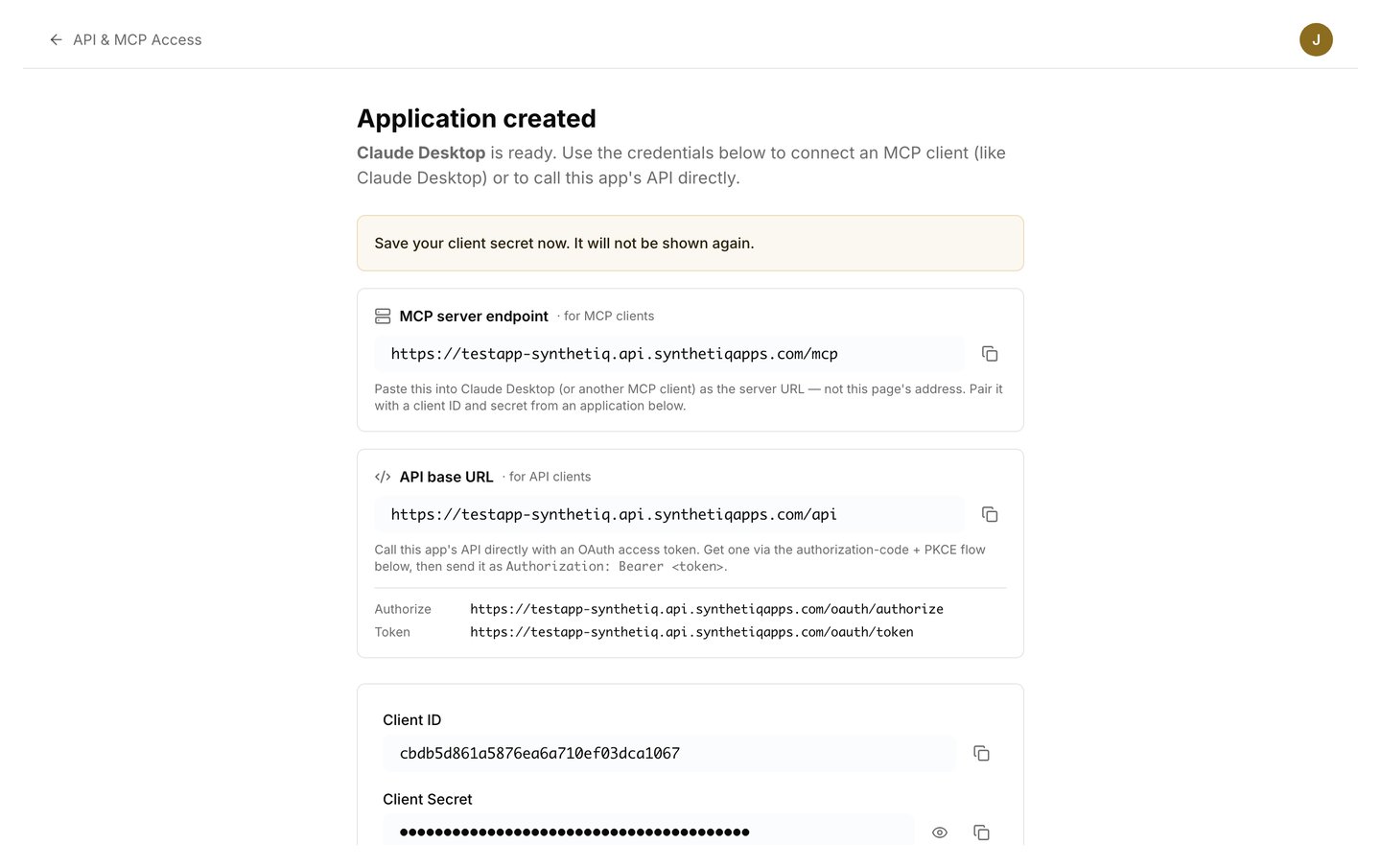
Connect it in Claude
1
Open Connectors in Claude
Switch to claude.ai. In the left sidebar, click Customize, then open the Connectors tab.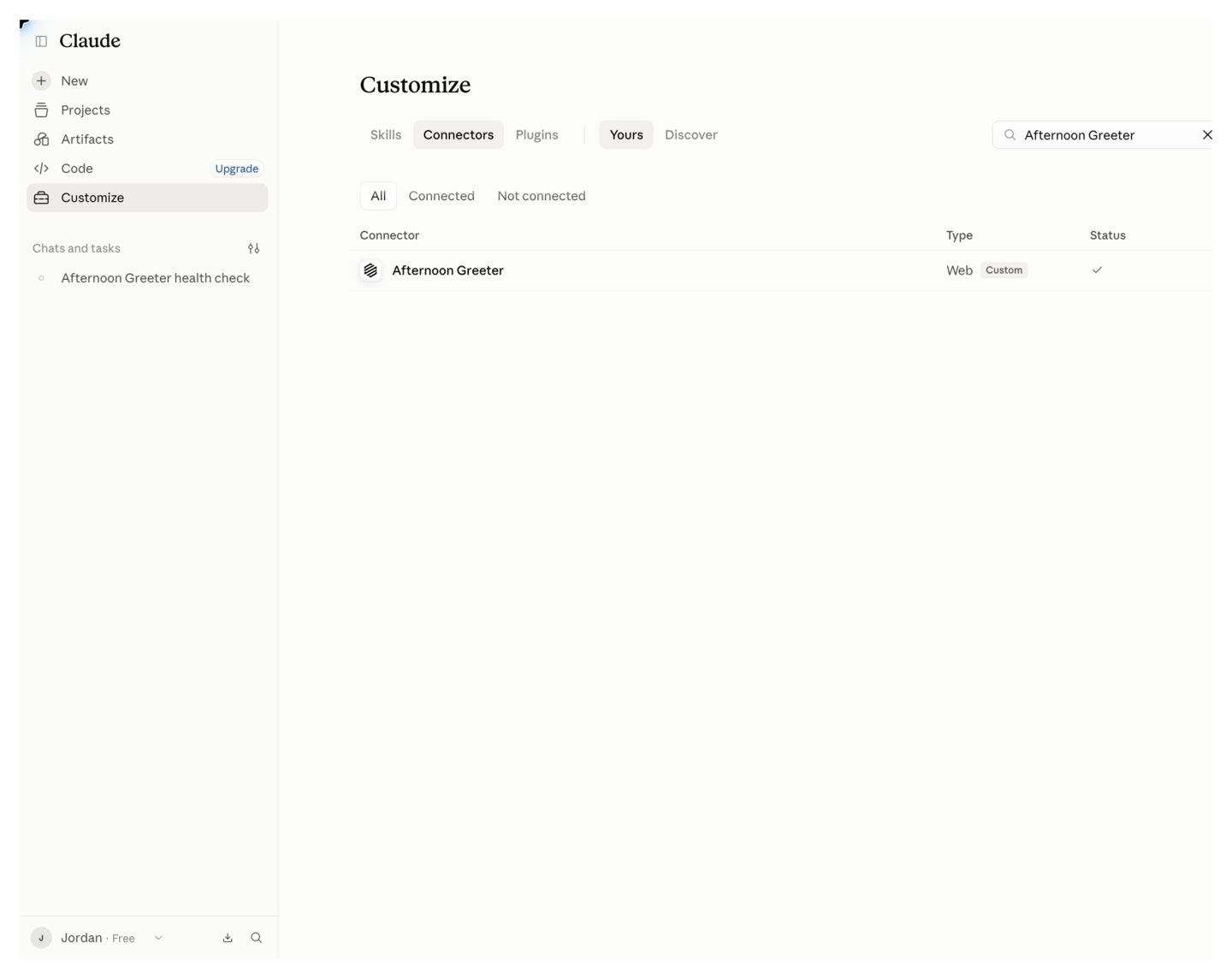
2
Add your app as a custom connector
Click Add, then Add custom connector. Paste your app’s MCP server endpoint from Step 2, then add the Client ID and Client Secret from Step 4. Save — your connector now appears in the Connectors list.
3
Open your connector and connect
Click your connector in the list, then click Connect.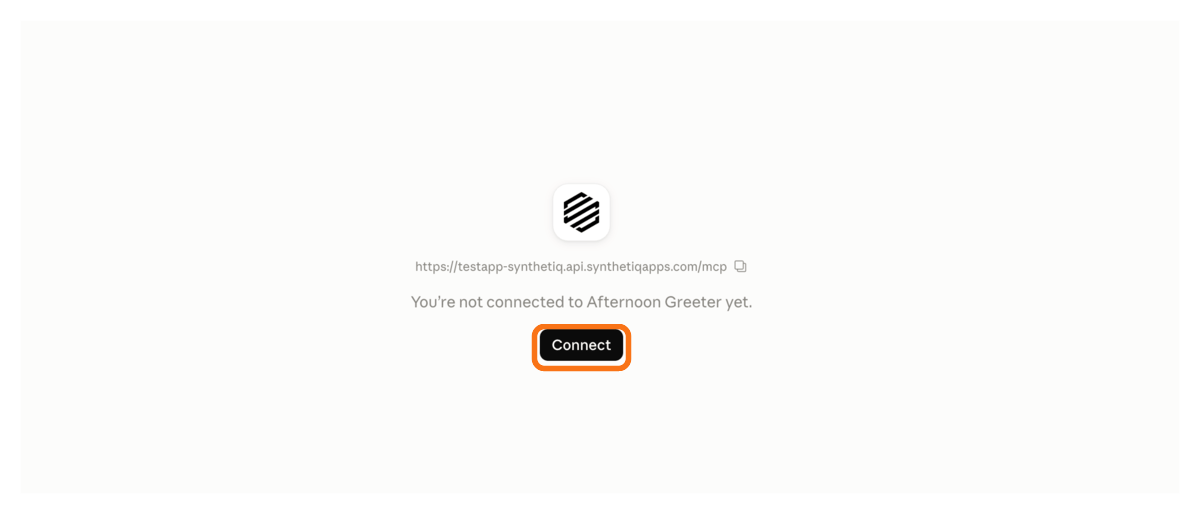
4
Sign in to your app
A sign-in window opens. Click Sign in with your app and approve the access you granted in Step 3. Claude stores the token and refreshes it automatically from then on.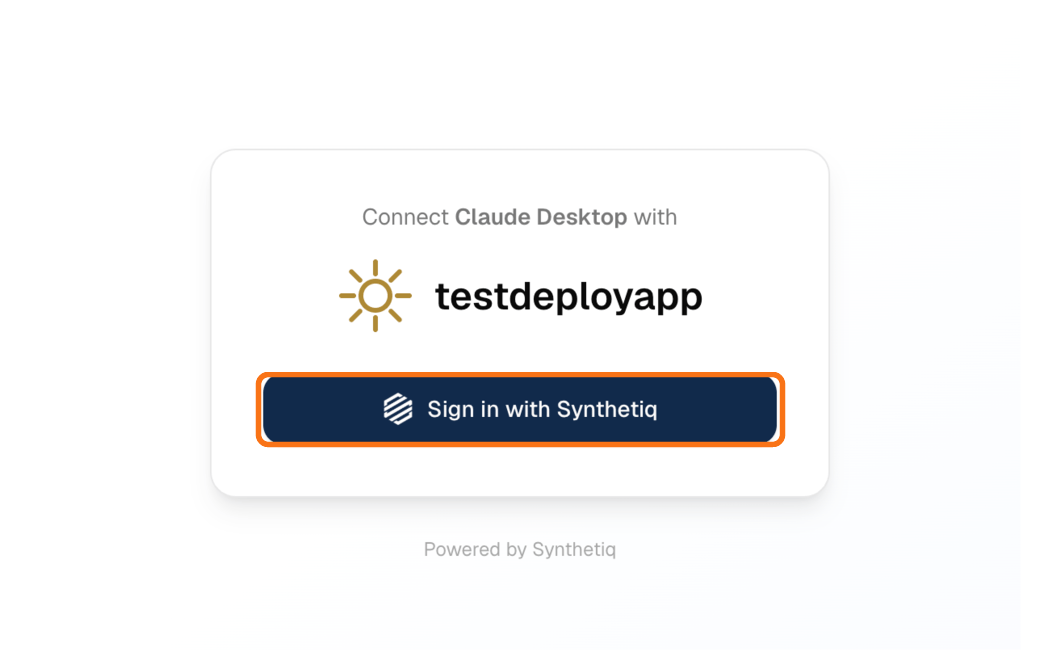
5
Review what Claude can use
Claude lists the app’s tools and when it’s allowed to call them. Leave the defaults, or fine-tune which tools need your approval.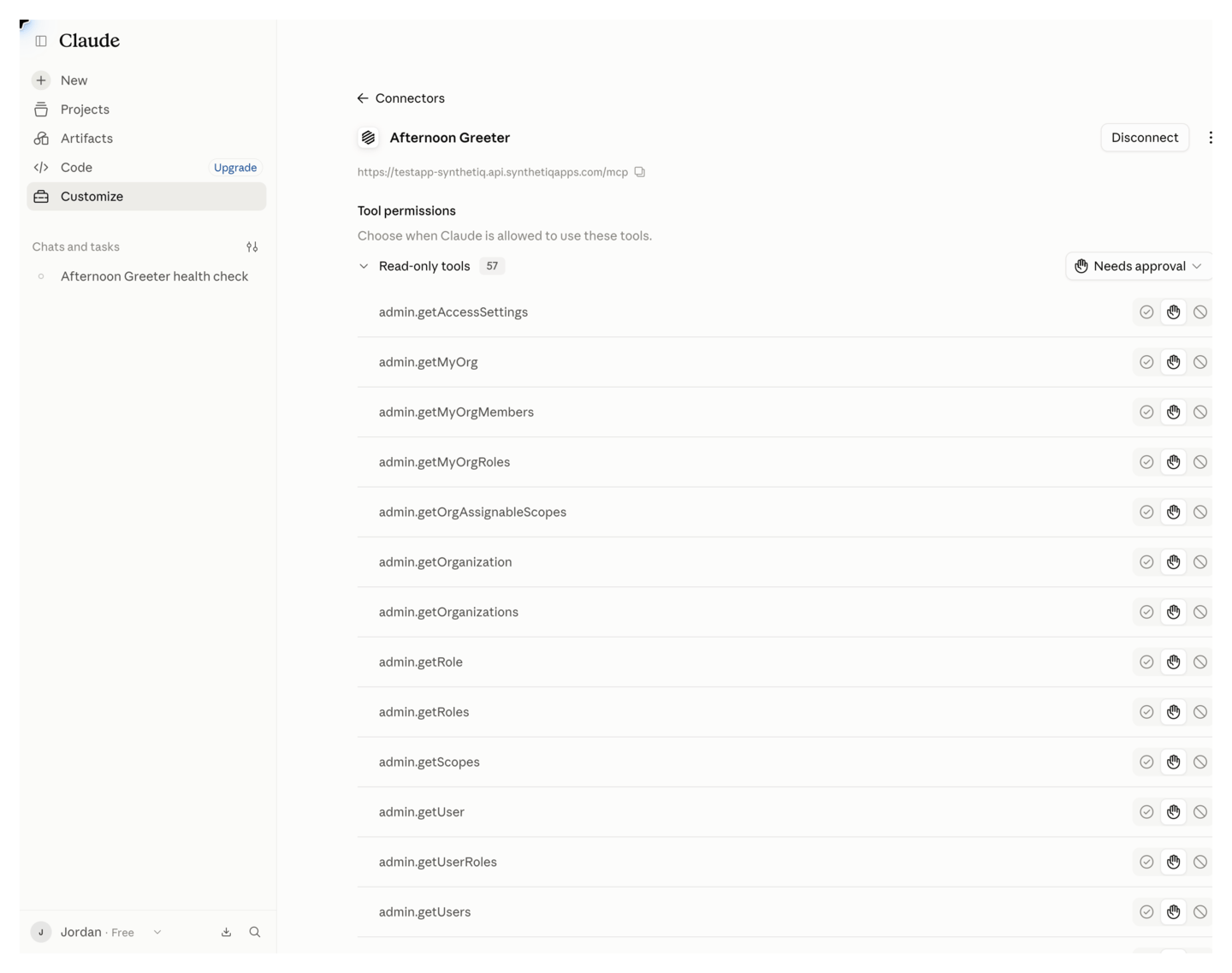
6
Use your app's tools
Start a chat and ask Claude to do something that uses one of the app’s tools. Claude calls the matching tool and returns live data from your app. Every call runs as you, so the app’s own role and row-level security rules still apply.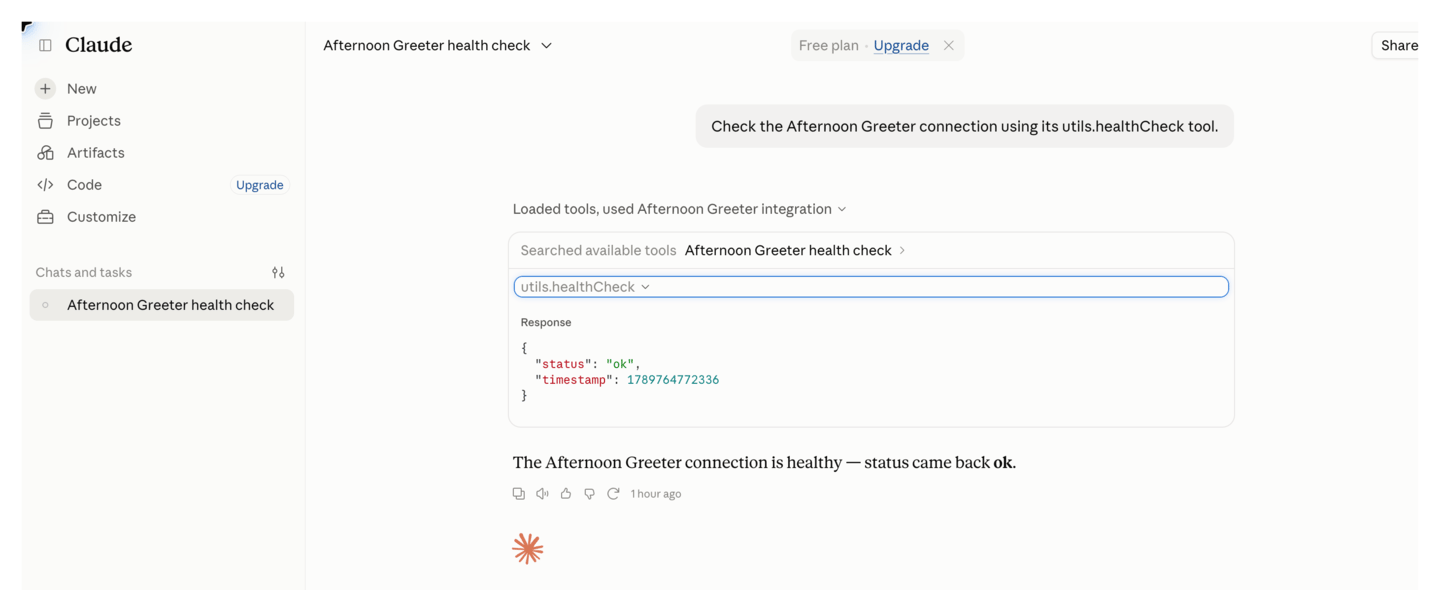
Advanced: connect Claude Desktop with a config file
Advanced: connect Claude Desktop with a config file
Prefer the desktop app, or on a plan without custom connectors? You can connect Claude Desktop through its config file using the
mcp-remote bridge. It runs locally and completes the OAuth flow in your browser.-
Make sure Node.js is installed (
mcp-remoteruns throughnpx). -
Because
mcp-remotefinishes authorization on a local address, add its callback as a Redirect URI on the application you created in Step 3:http://localhost:3334/oauth/callback. -
Open your Claude Desktop config file:
- macOS:
~/Library/Application Support/Claude/claude_desktop_config.json - Windows:
%APPDATA%\Claude\claude_desktop_config.json
- macOS:
-
Add your server under
mcpServers. Replace the placeholder with the MCP server endpoint you copied in Step 2 — paste the whole URL rather than rebuilding it by hand: - Fully quit and reopen Claude Desktop. On first launch it opens a browser to authorize — sign in and approve the scopes.
What’s next
Connect One App to Another
Turn a deployed app’s API into a service so your other apps can read its data and trigger its actions.
MCP server reference
The technical reference for the MCP server every app exposes.