
Prerequisites
- Synthetiq installed, signed in, and your Claude API key saved (see Set Up Synthetiq and Set Your API Key)
Steps
1
Open the chat panel
Click the chat icon in the left menu, or press ⌘], to open the chat panel.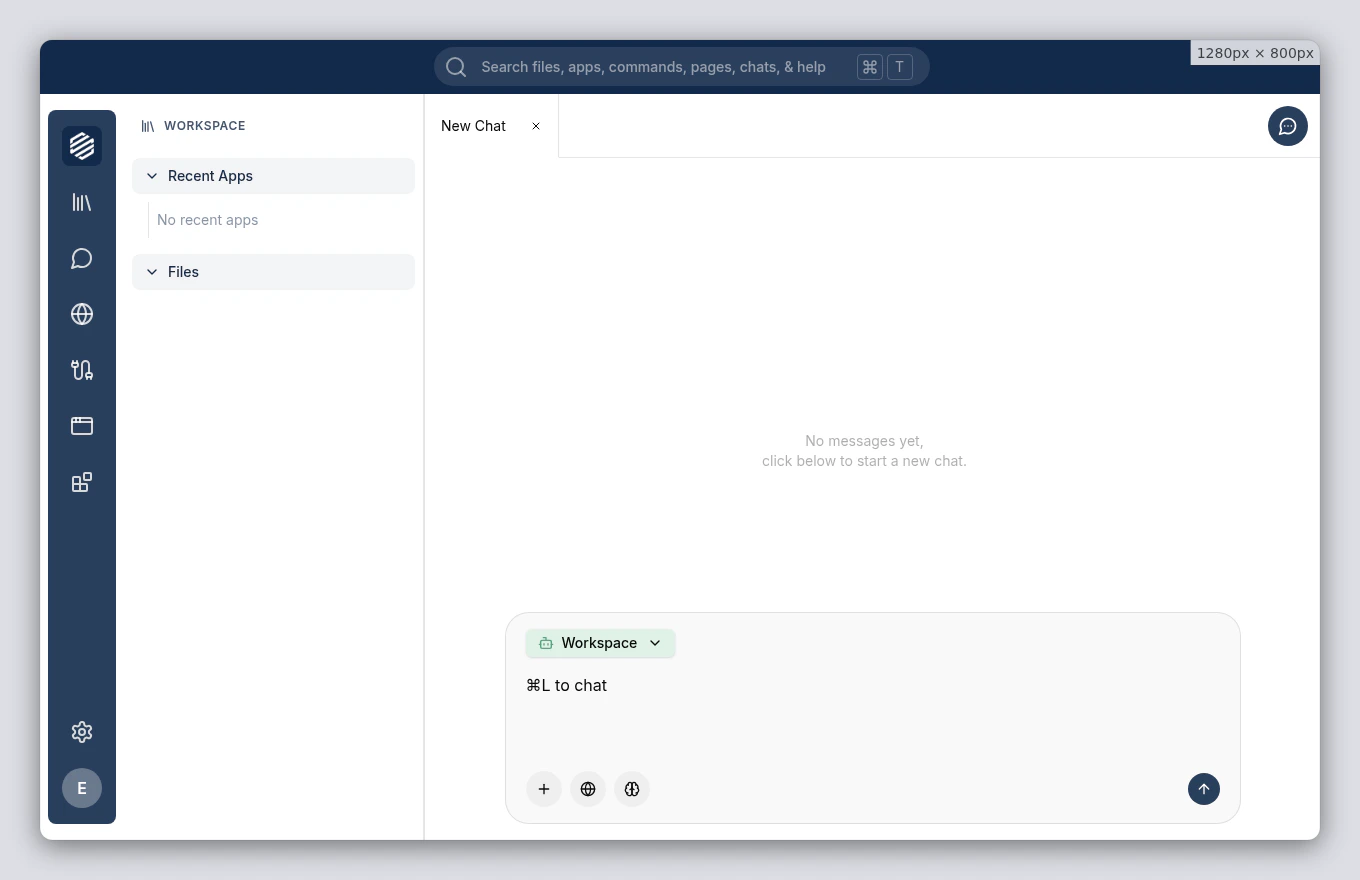
2
Describe the app you want
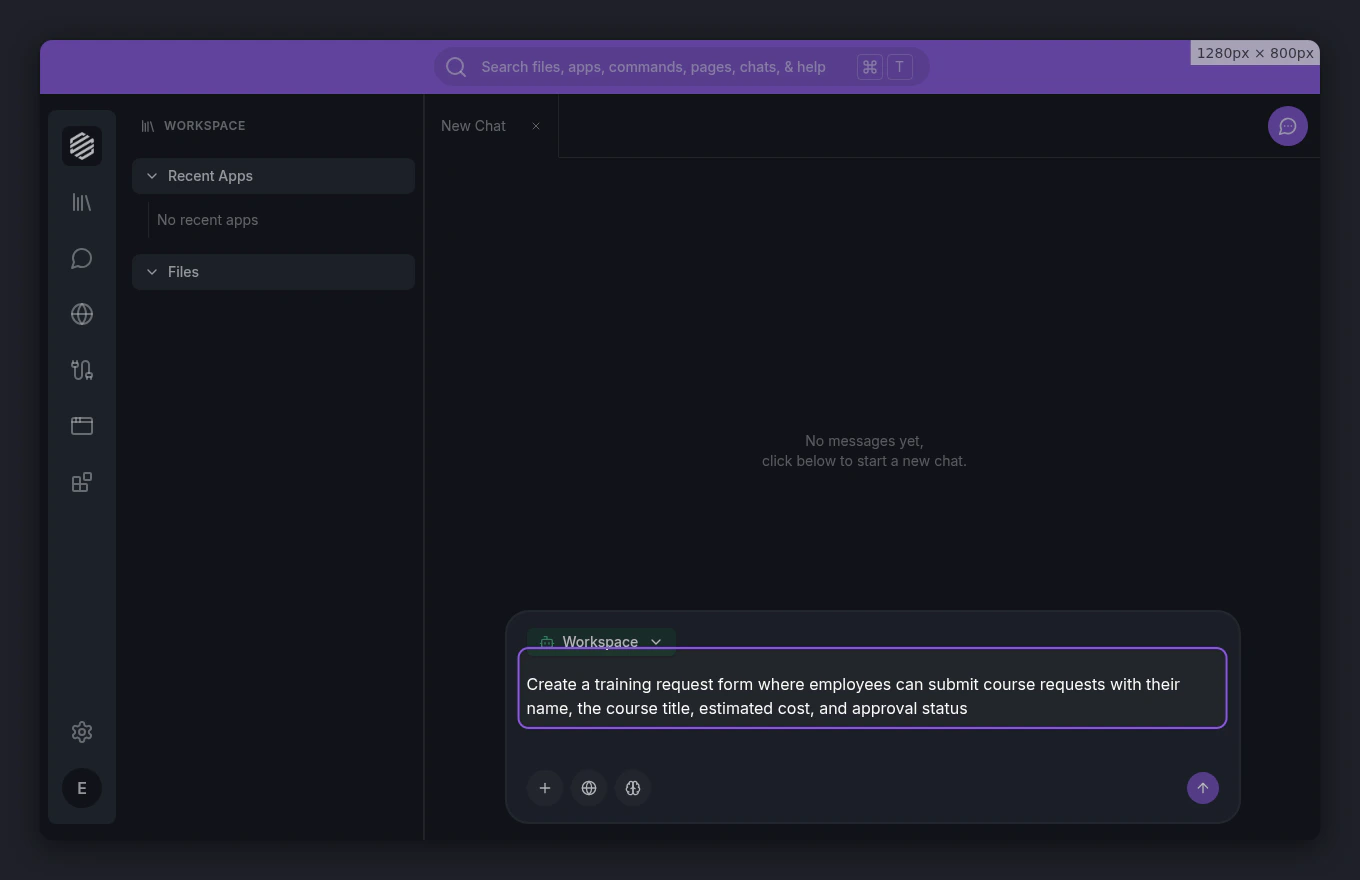
Type a description of your app into the chat. Be specific about the features you need.For this tutorial, type: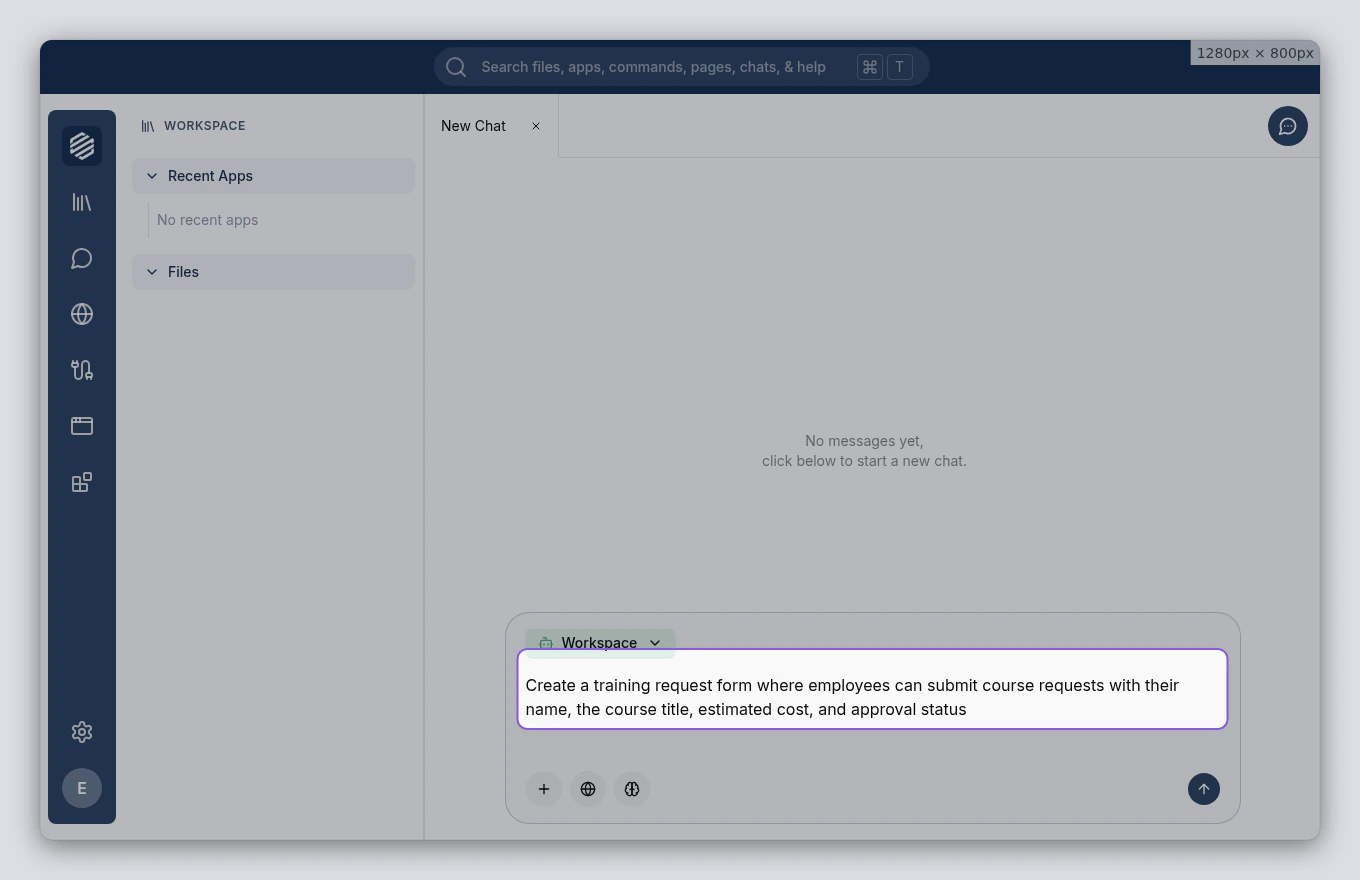
Create a training request form where employees can submit course requests with their name, the course title, estimated cost, and approval statusPress Enter to send your message.
3
Wait for the agent to switch modes
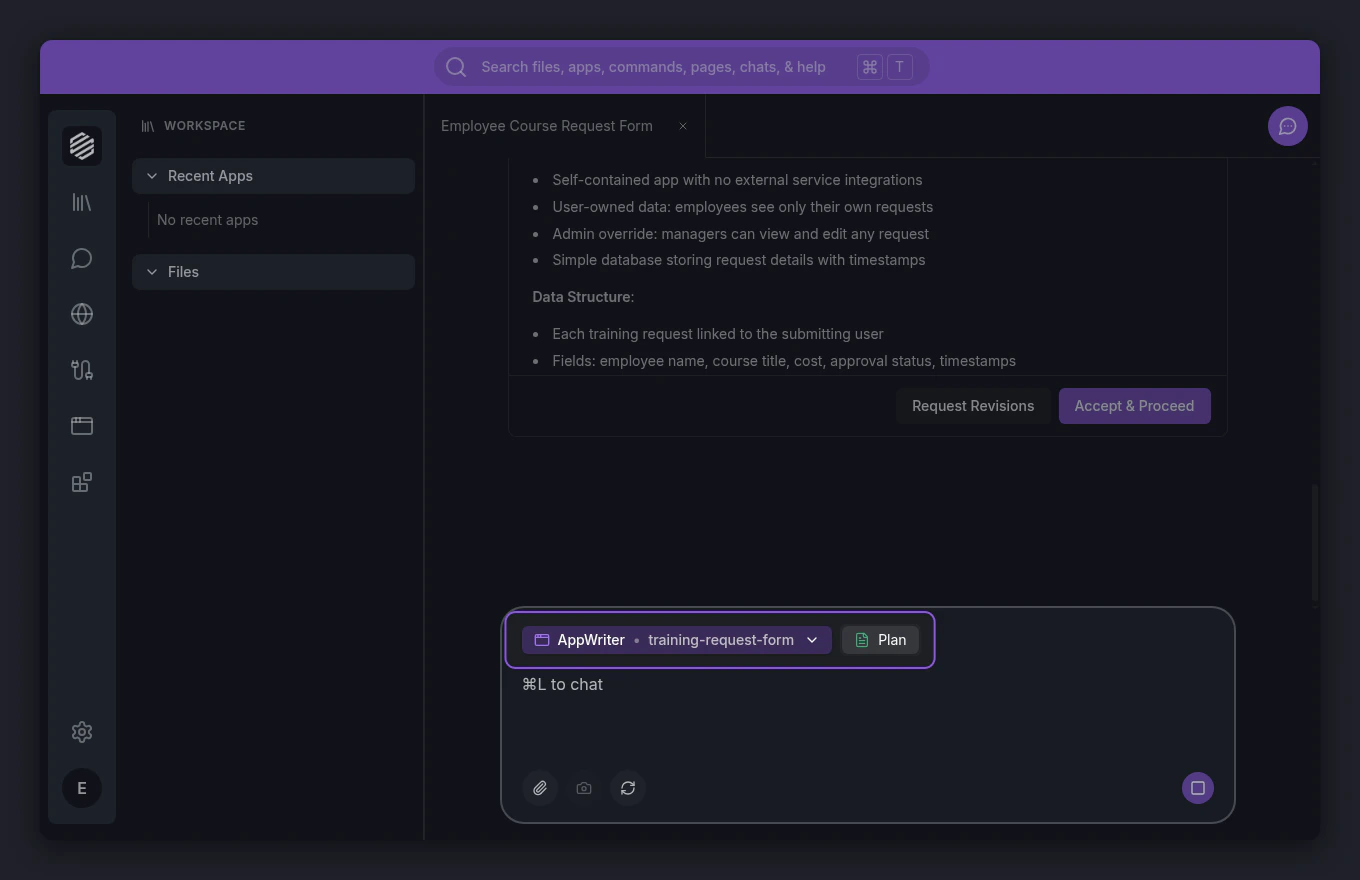
The Workspace agent recognizes that you want to build an app and hands off to the AppWriter agent. A mode-switch indicator appears in the chat showing the transition.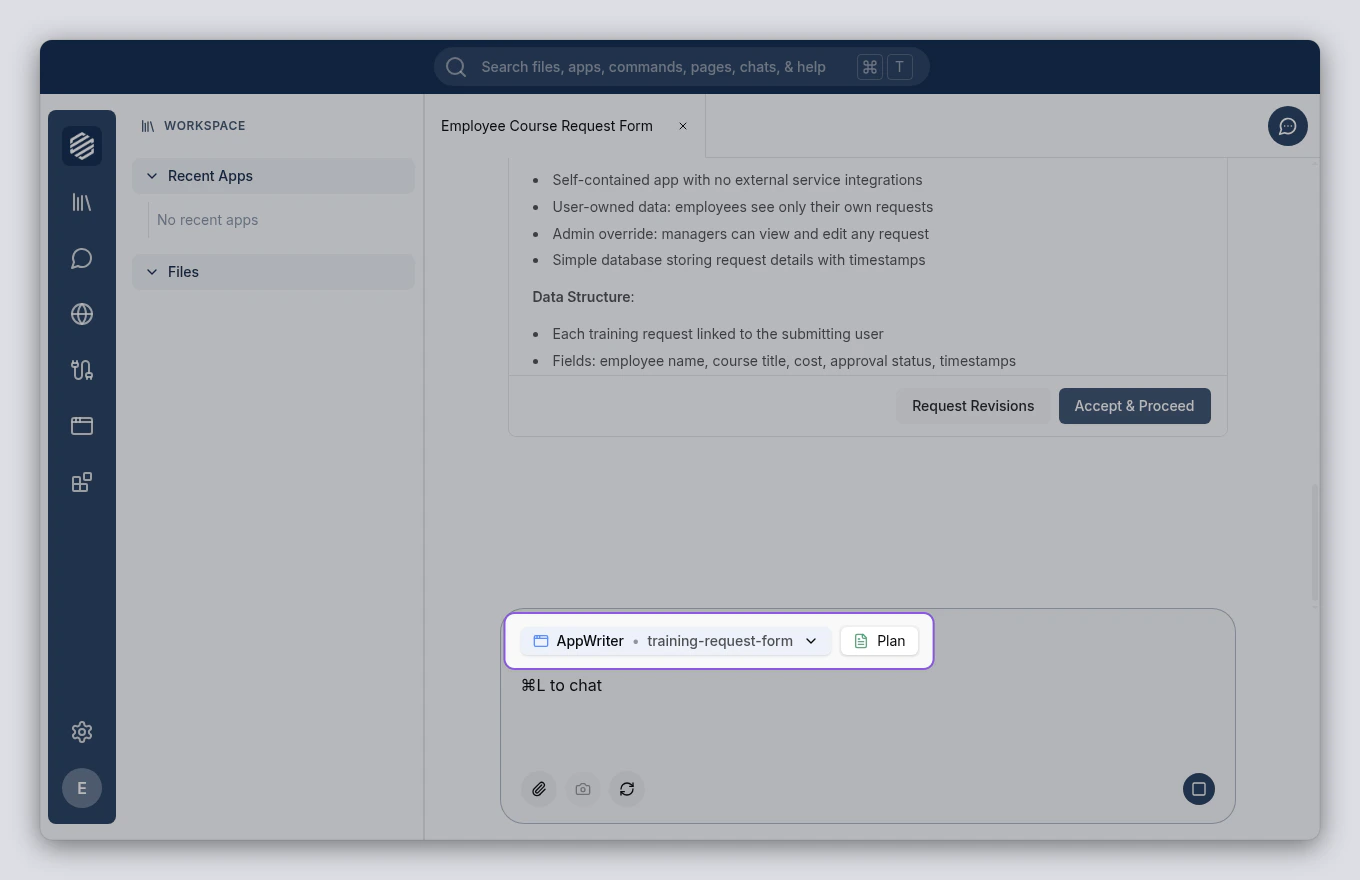
4
Review the plan
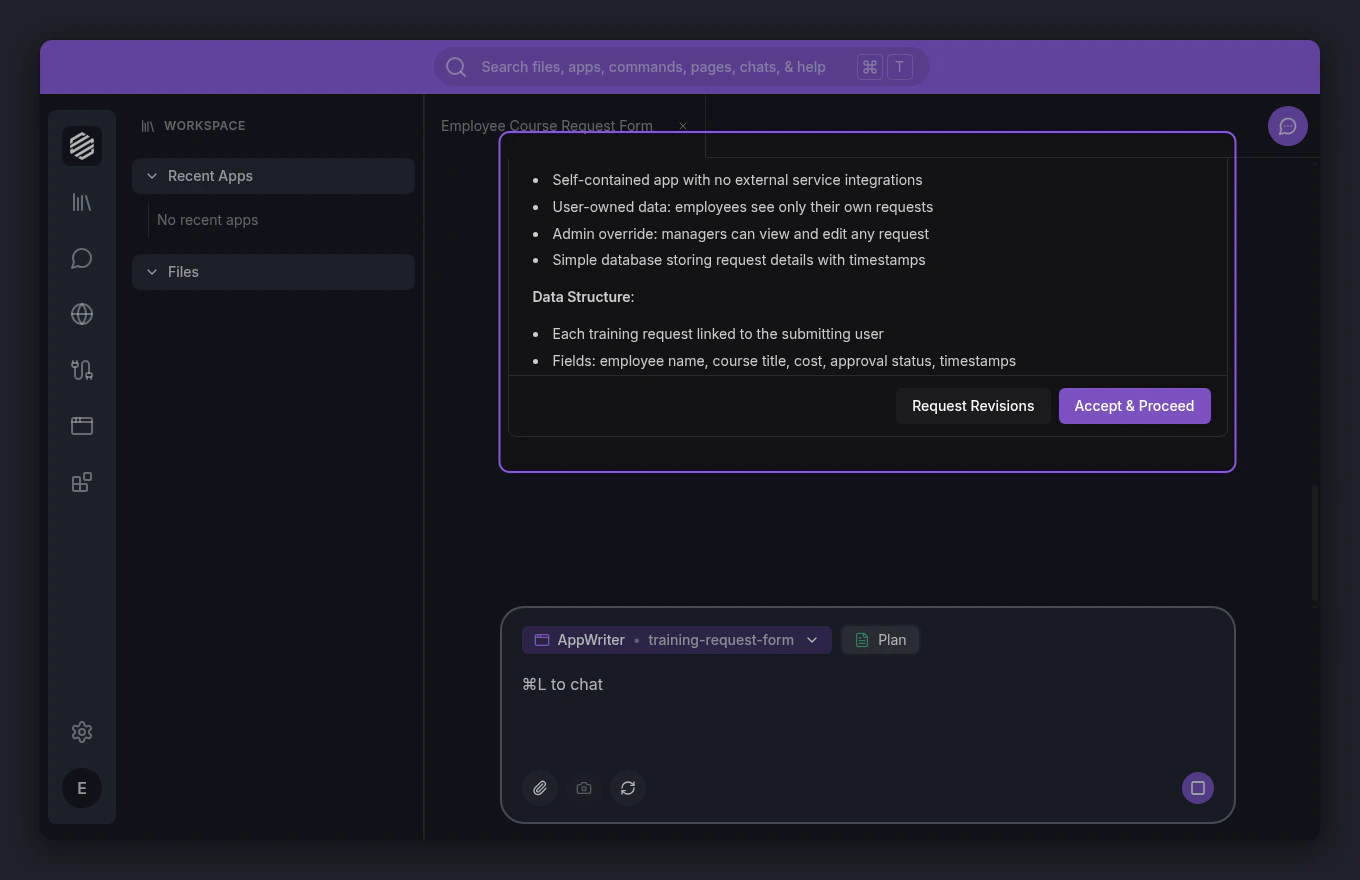
The AppWriter agent presents a plan for your app. The plan card covers the app’s features, data model, and pages. Read through it to make sure it matches what you had in mind.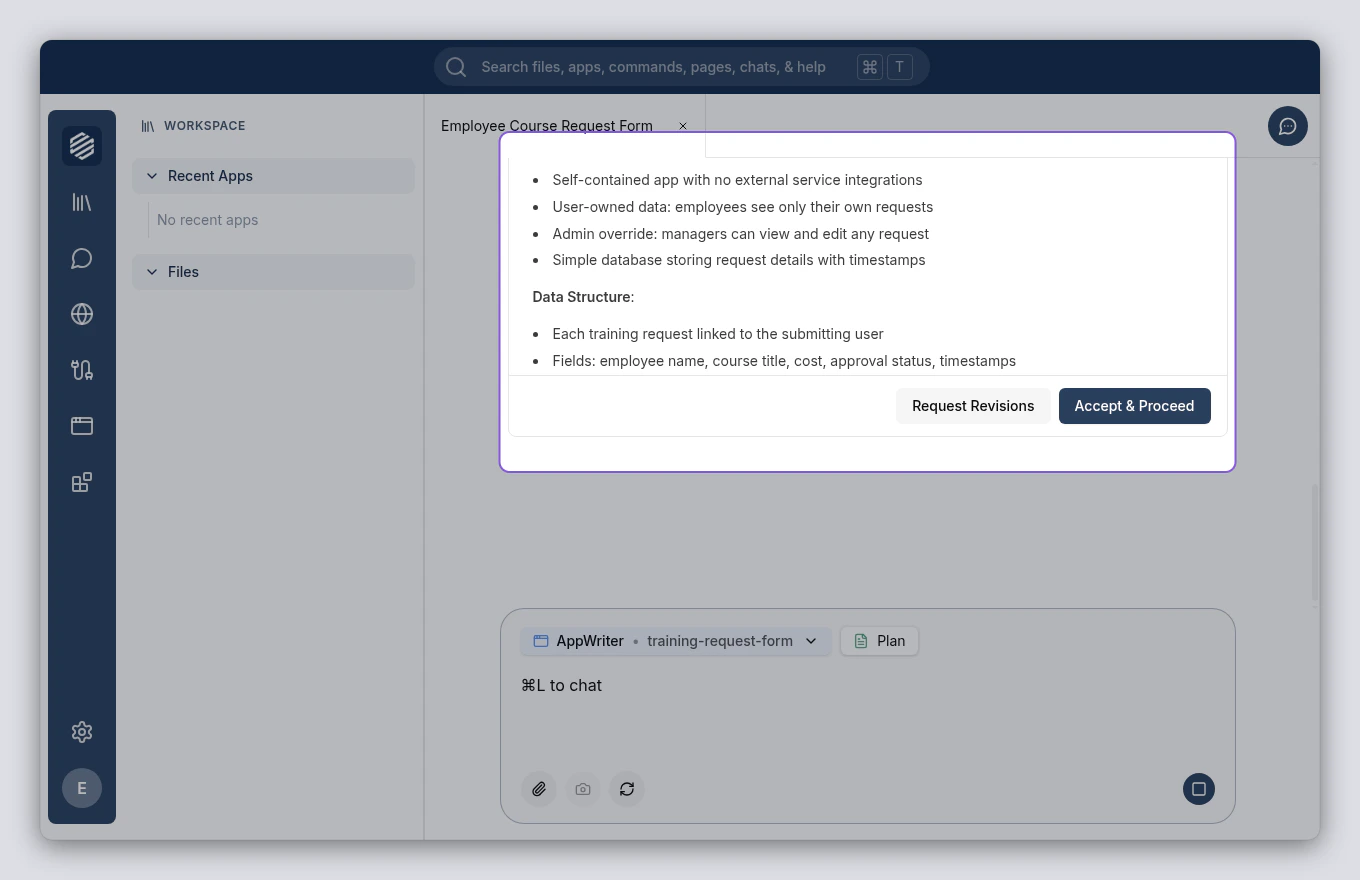
5
Accept the plan
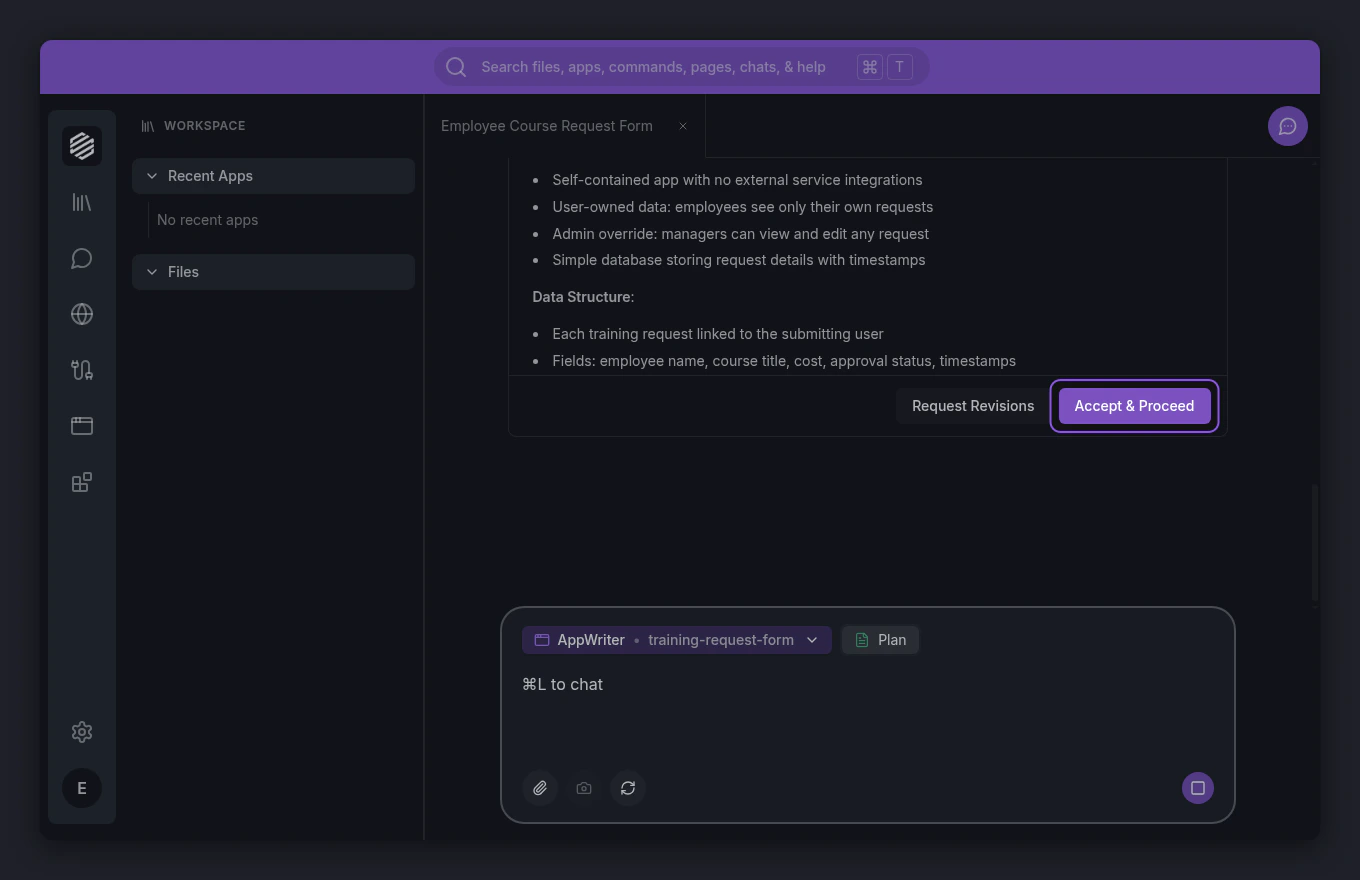
If the plan looks good, click Accept & Proceed at the bottom of the plan card. The AppWriter agent begins building your app.If something needs changing, click Request Revisions instead and describe what you want adjusted.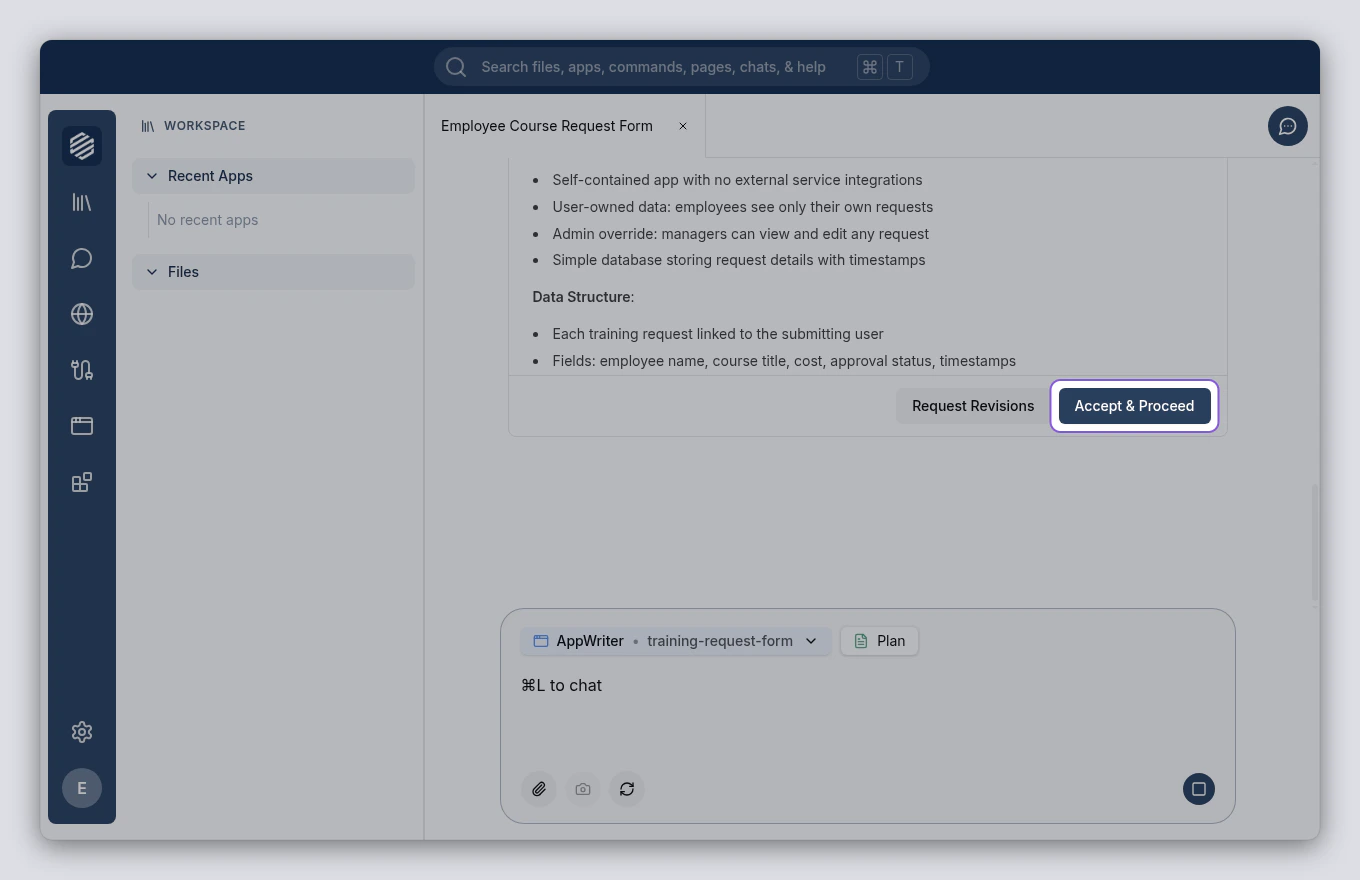
6
Wait for the build to finish
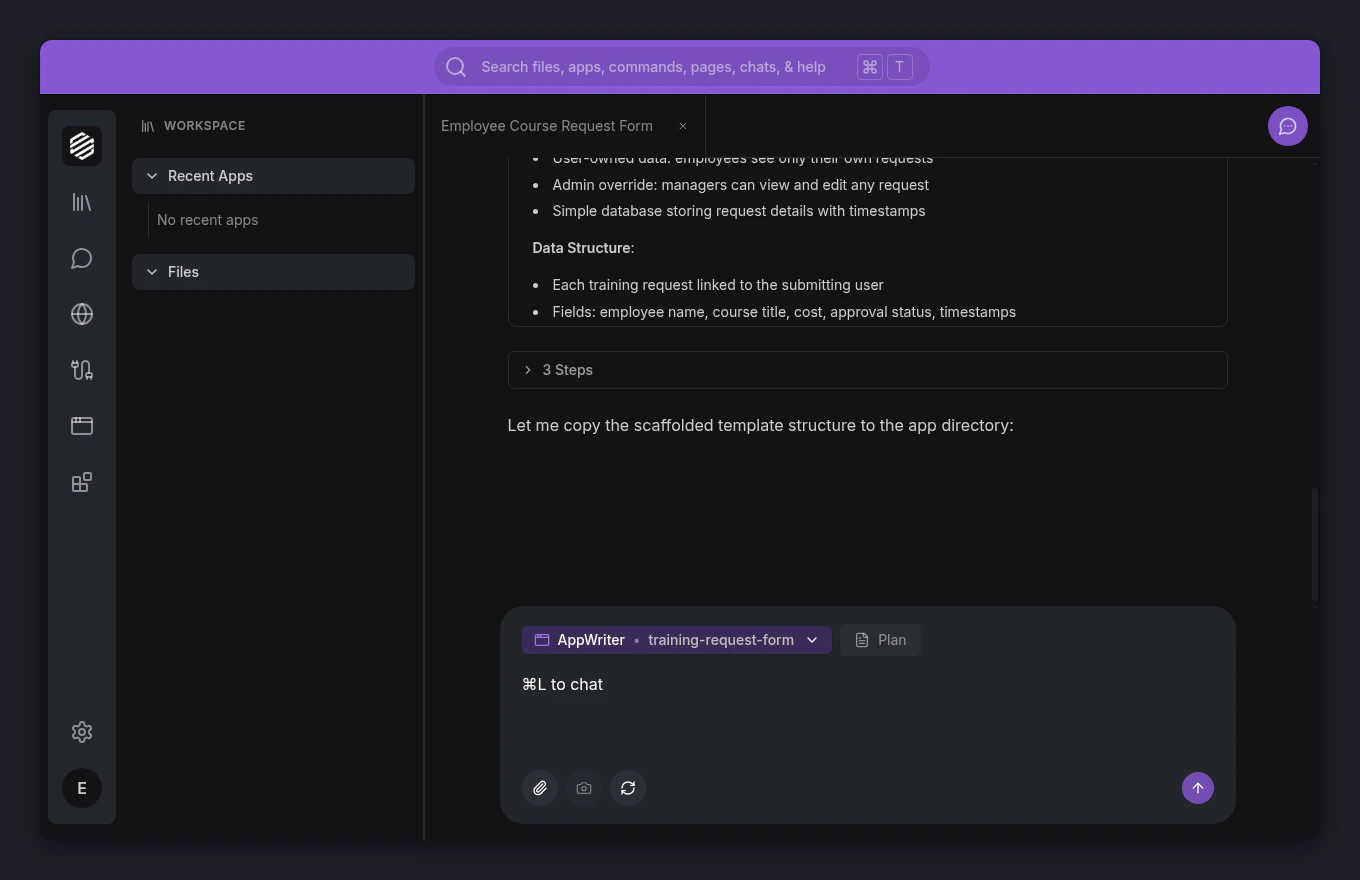
The AppWriter agent creates your app’s frontend, backend, and database. You can watch progress as tool calls appear in the chat. This takes a minute or two depending on the complexity of your app.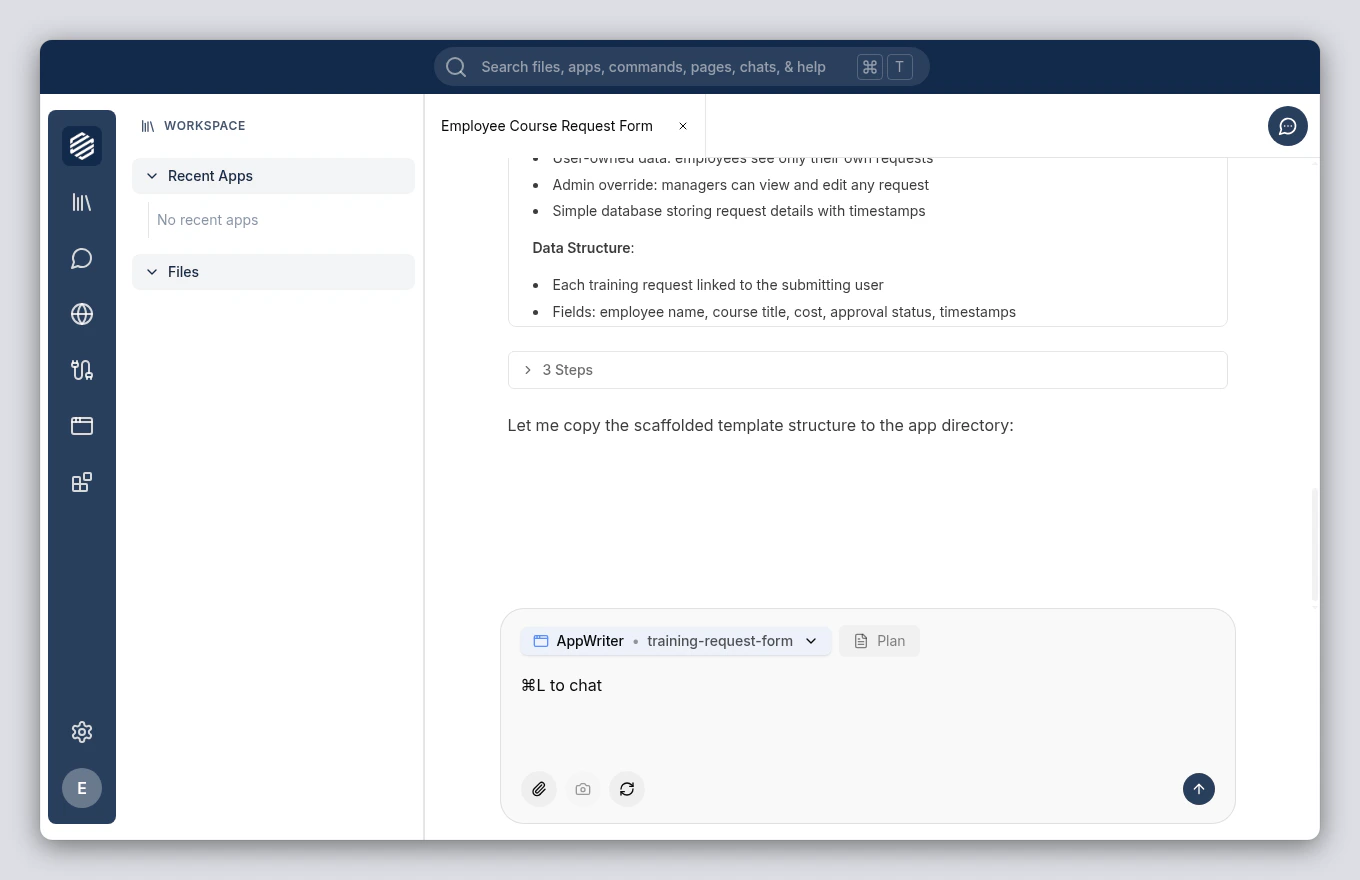
7
Open your new app
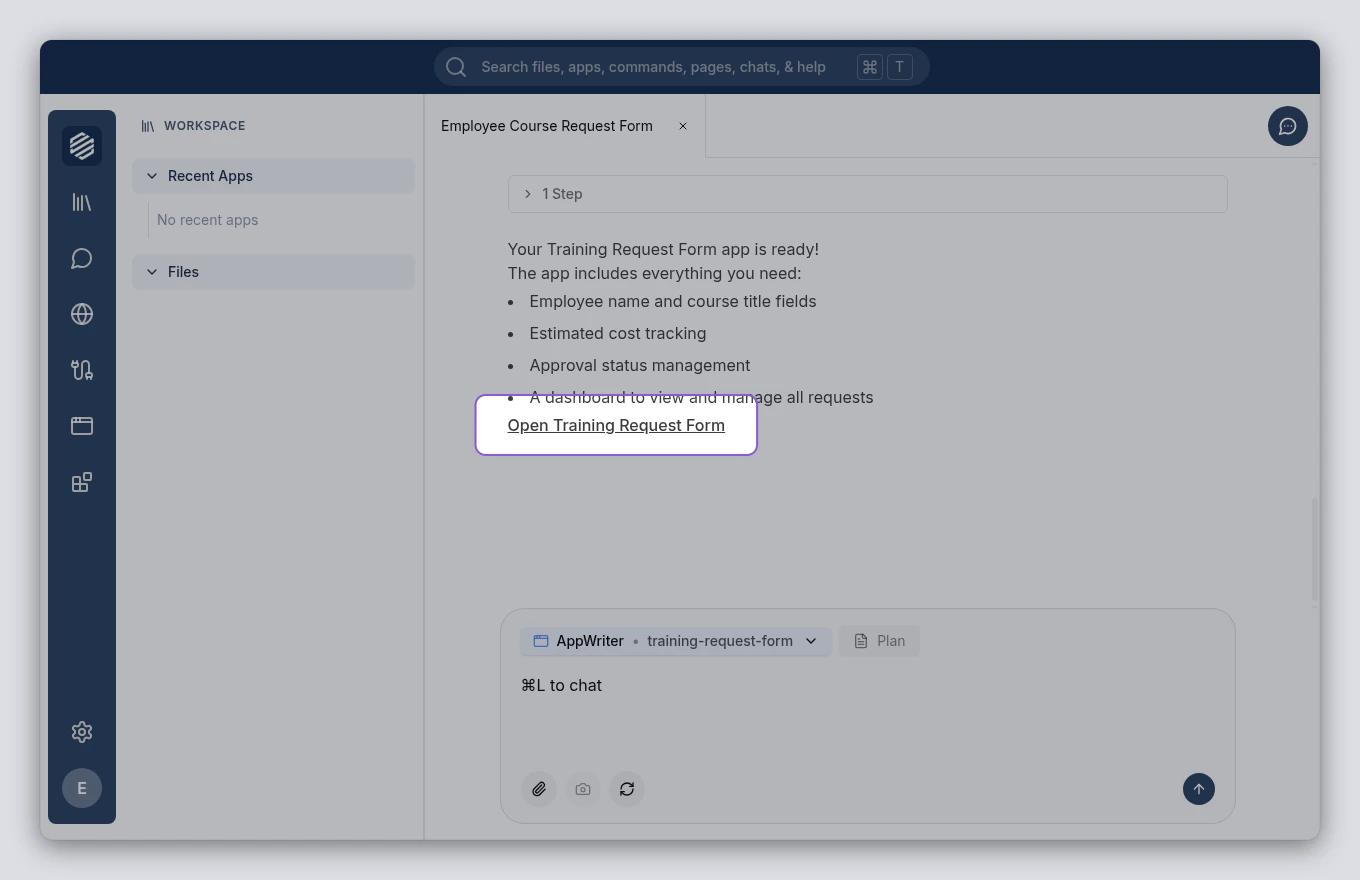
When the build finishes, the agent provides a link to your app. Click the link to open it in a new tab.