
Prerequisites
- Synthetiq installed and signed in — download from synthetiq.com if you haven’t already
- One of the following:
- A Claude API key from console.anthropic.com, or
- A Claude subscription you can sign in to
Steps
1
Open Settings
Click the gear icon at the bottom of the left menu to open Settings.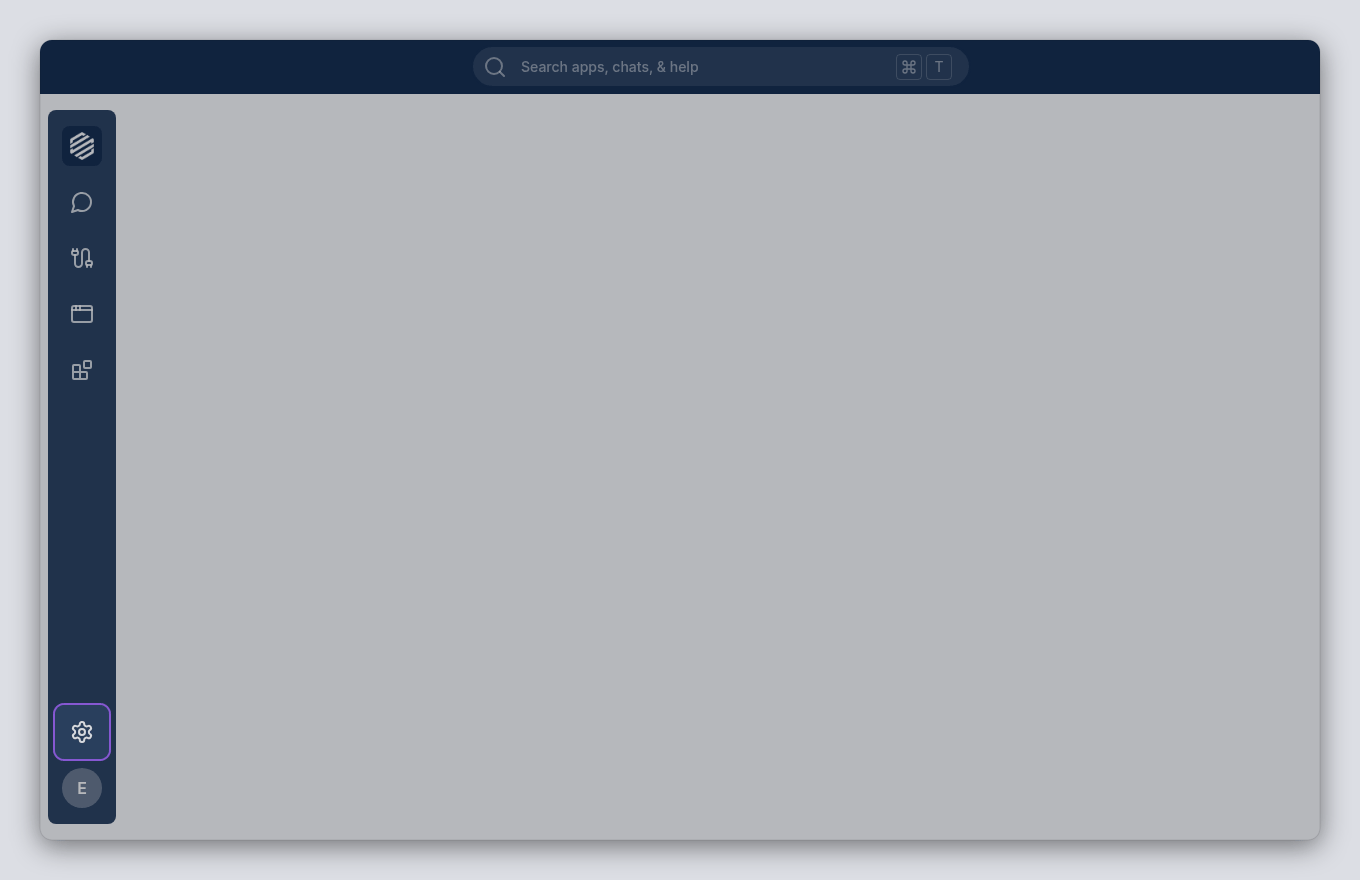
2
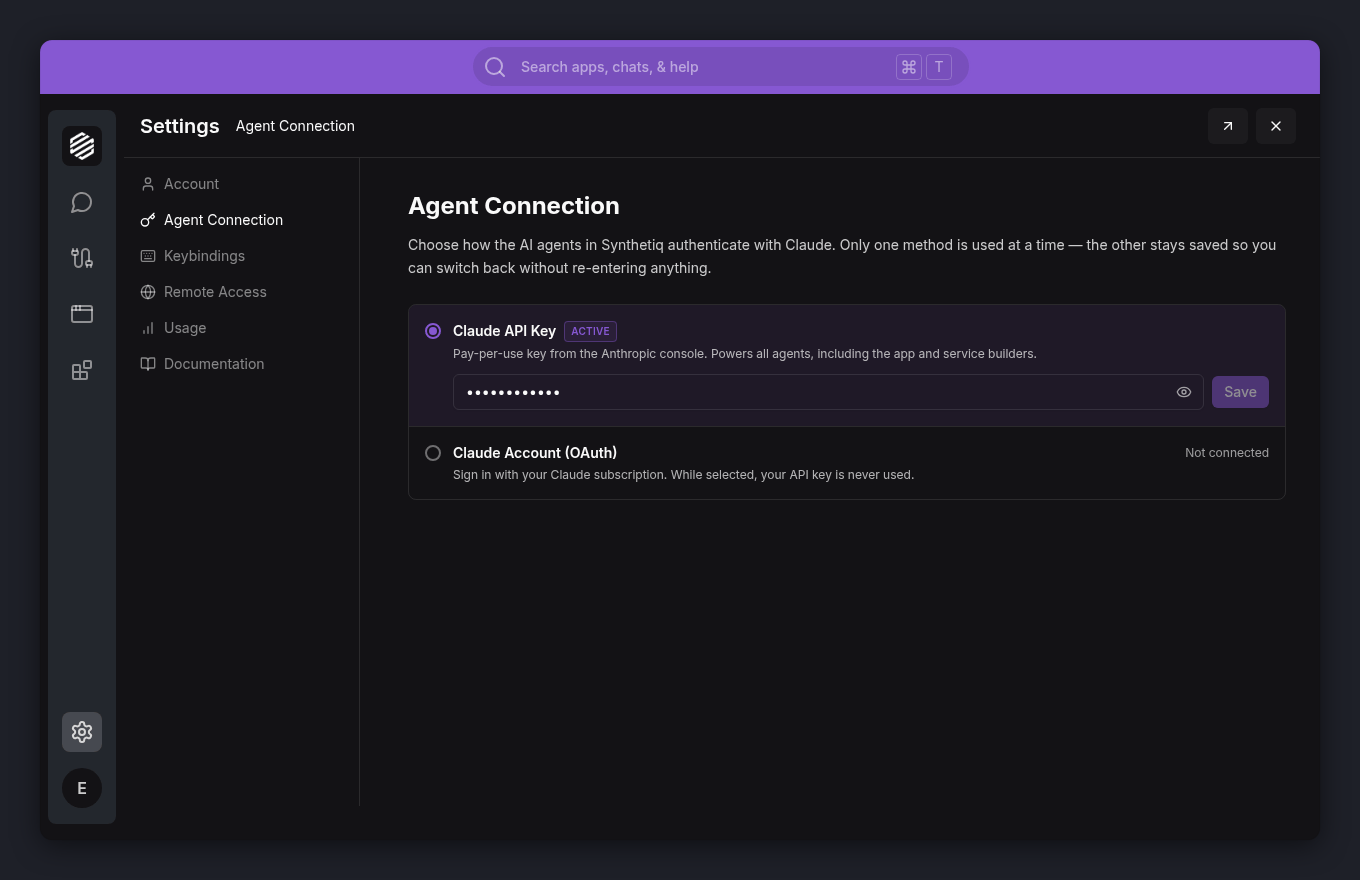
Go to Agent Connection
In the Settings panel, click Agent Connection in the left sidebar. This is where you choose how Synthetiq’s agents authenticate with Claude.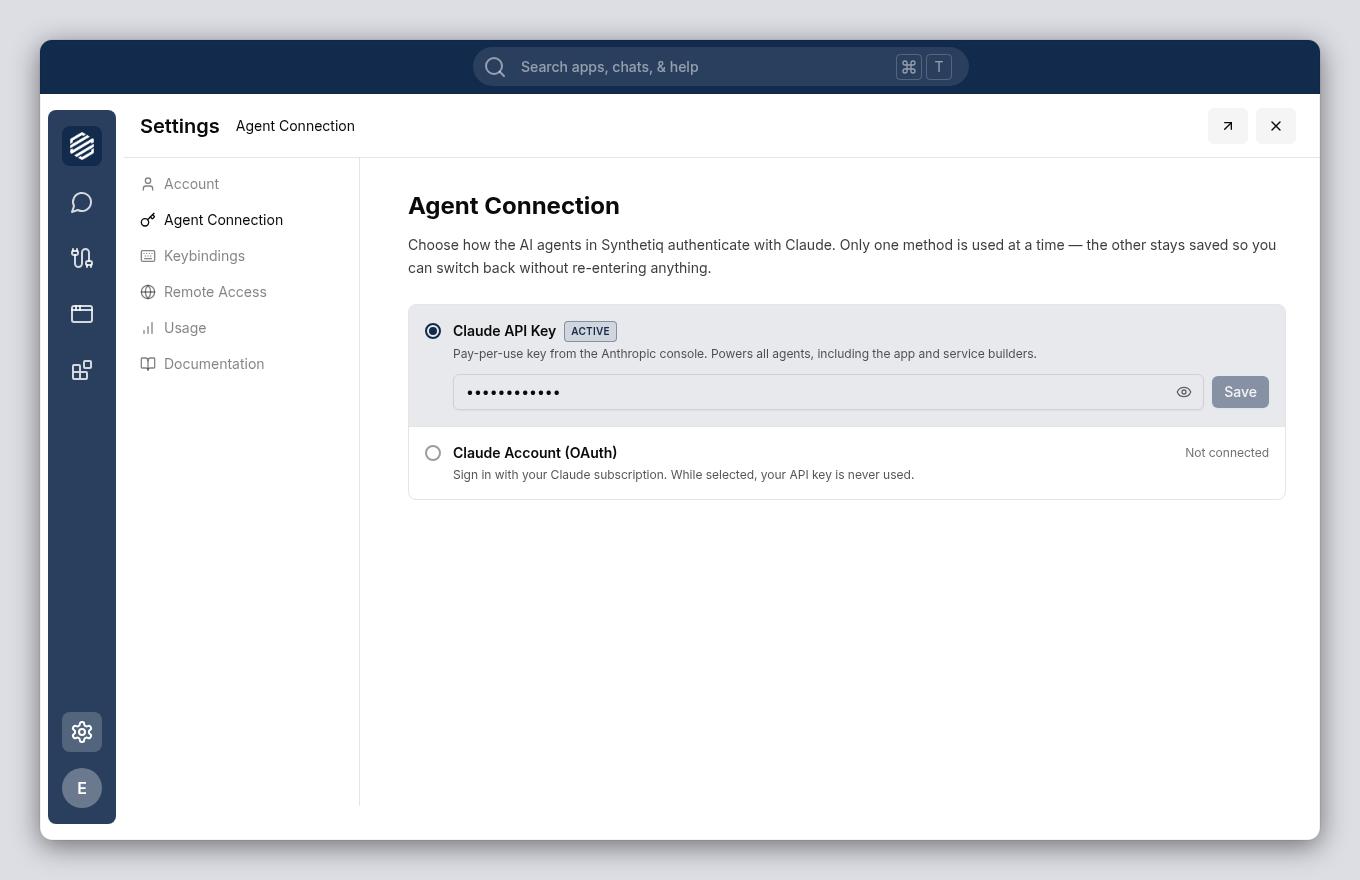
3
Choose how to connect
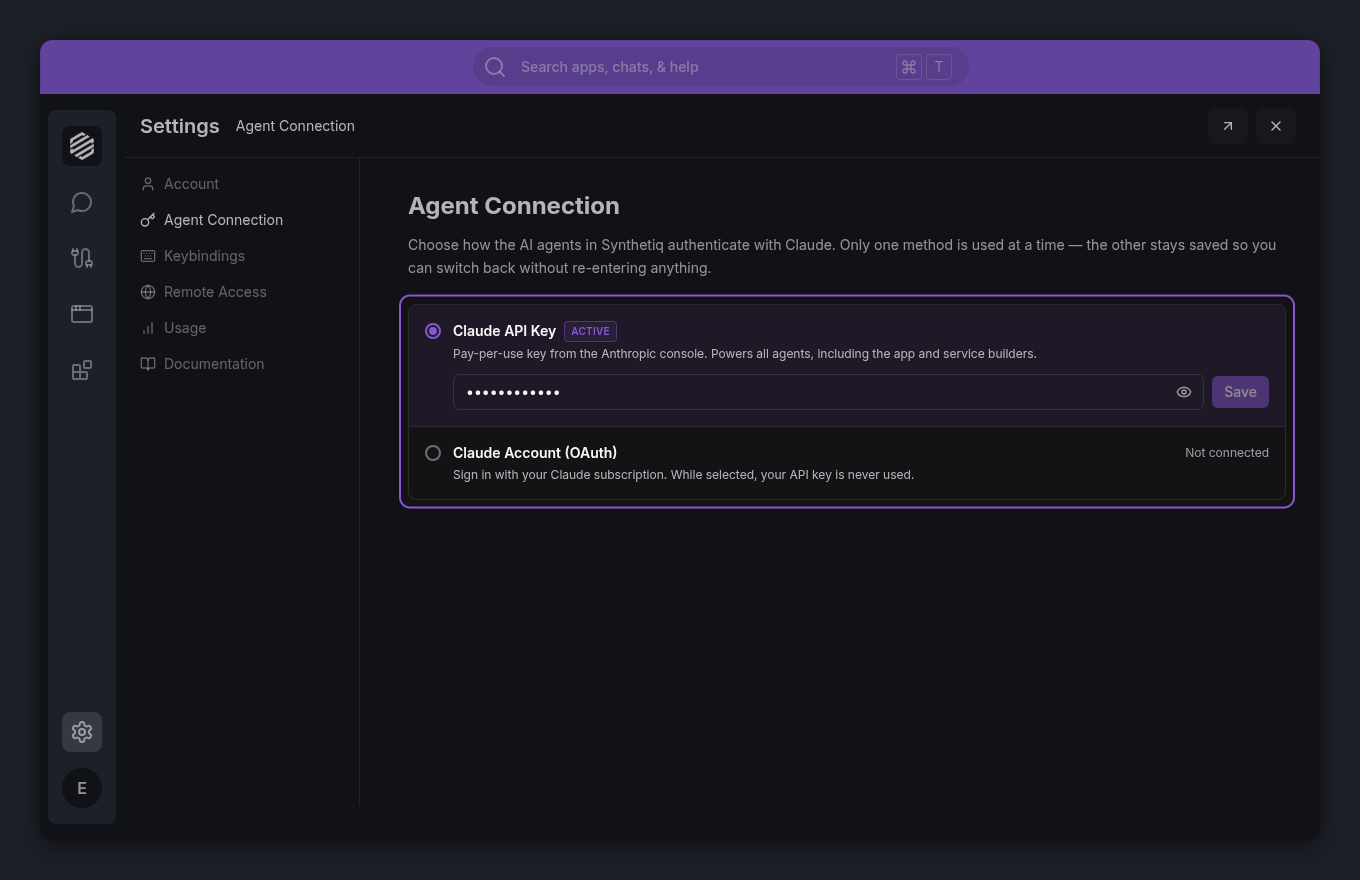
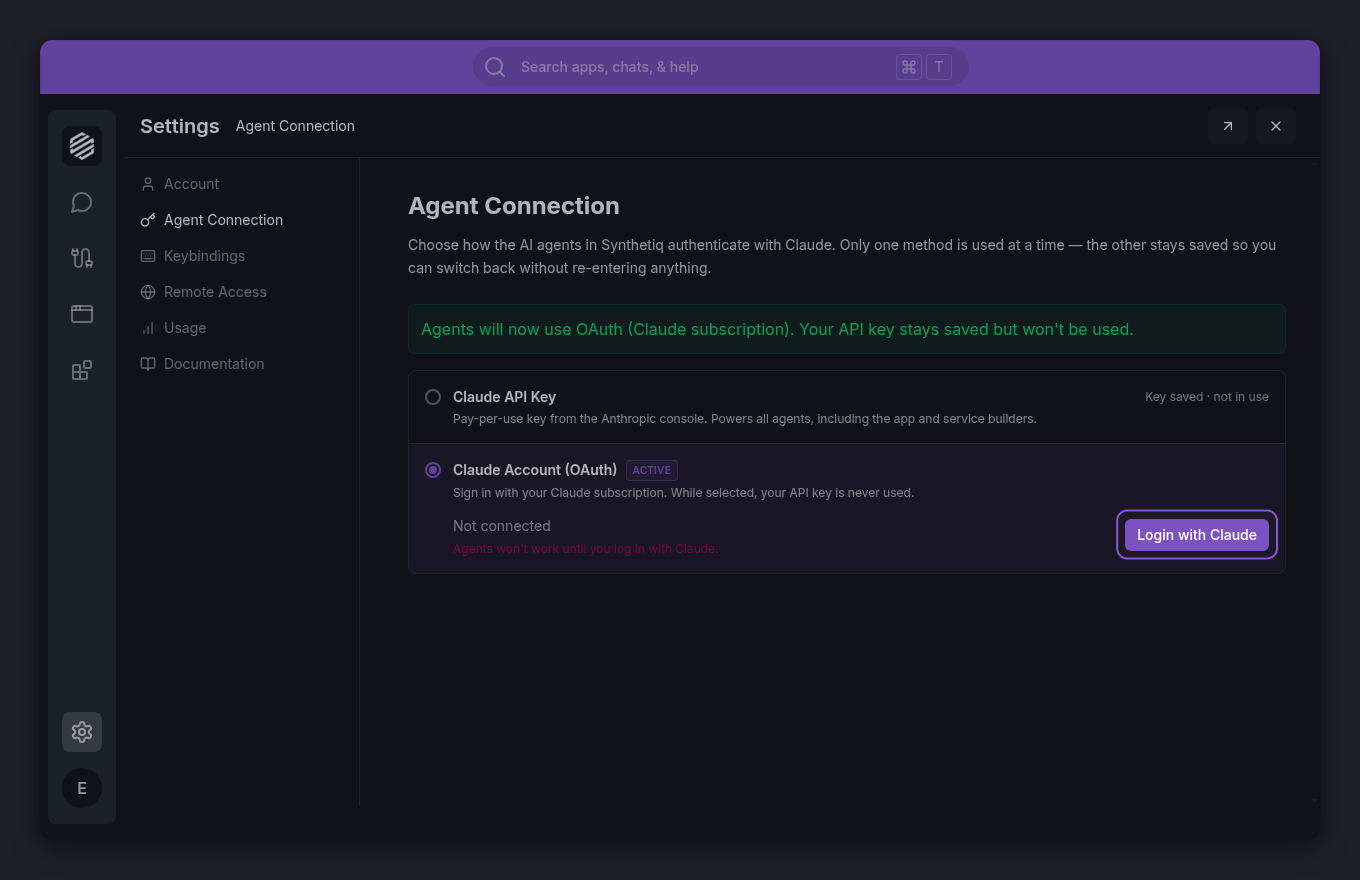
You have two options. Only one is used at a time, and both stay saved so you can switch back later: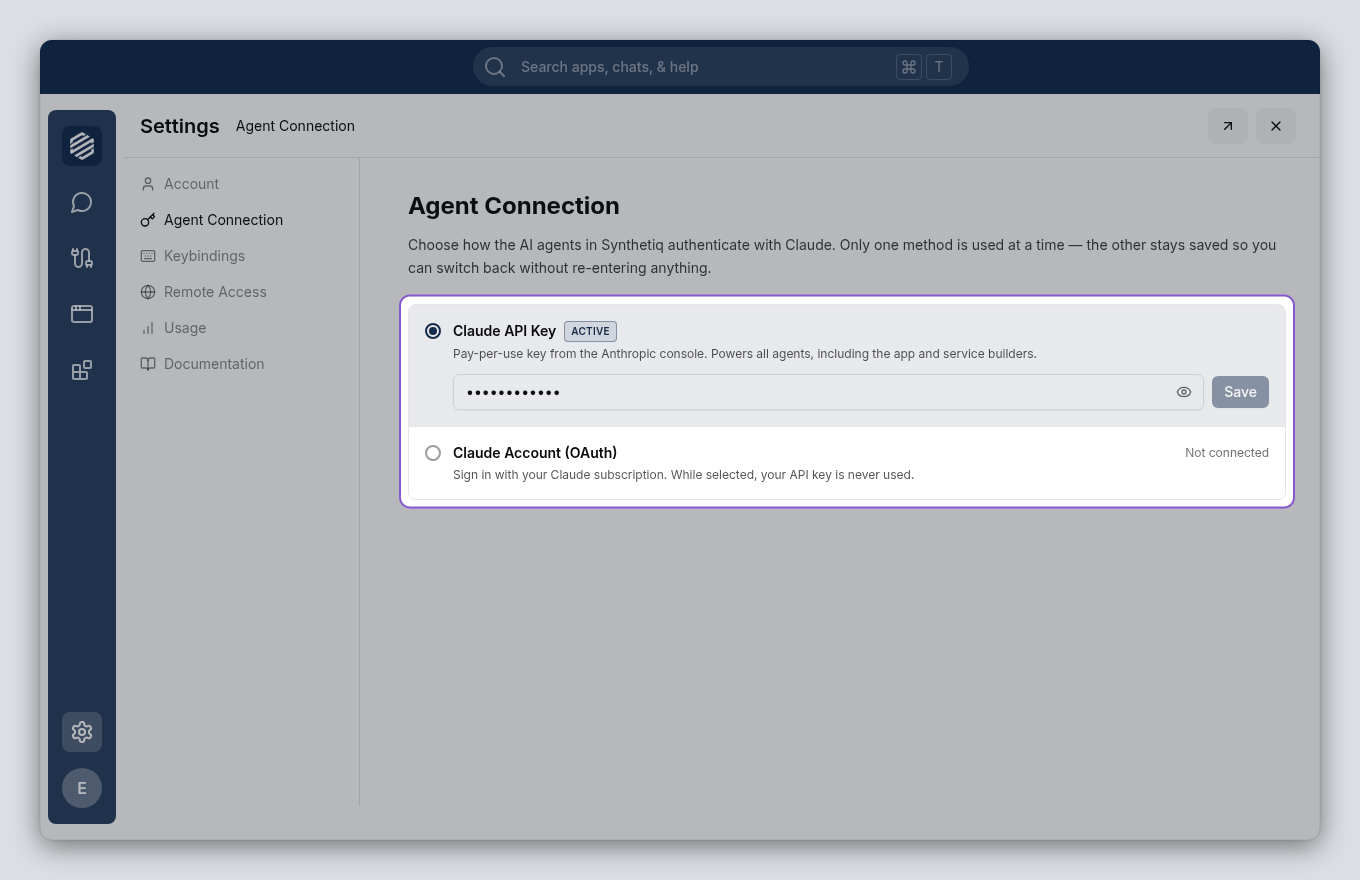
- Claude API Key — a pay-per-use key from the Anthropic console. Powers all agents, including the app and service builders.
- Claude Account (OAuth) — sign in with your Claude subscription instead of pasting a key.
4
Connect with a Claude API key
Click Claude API Key. Paste your key — it starts with 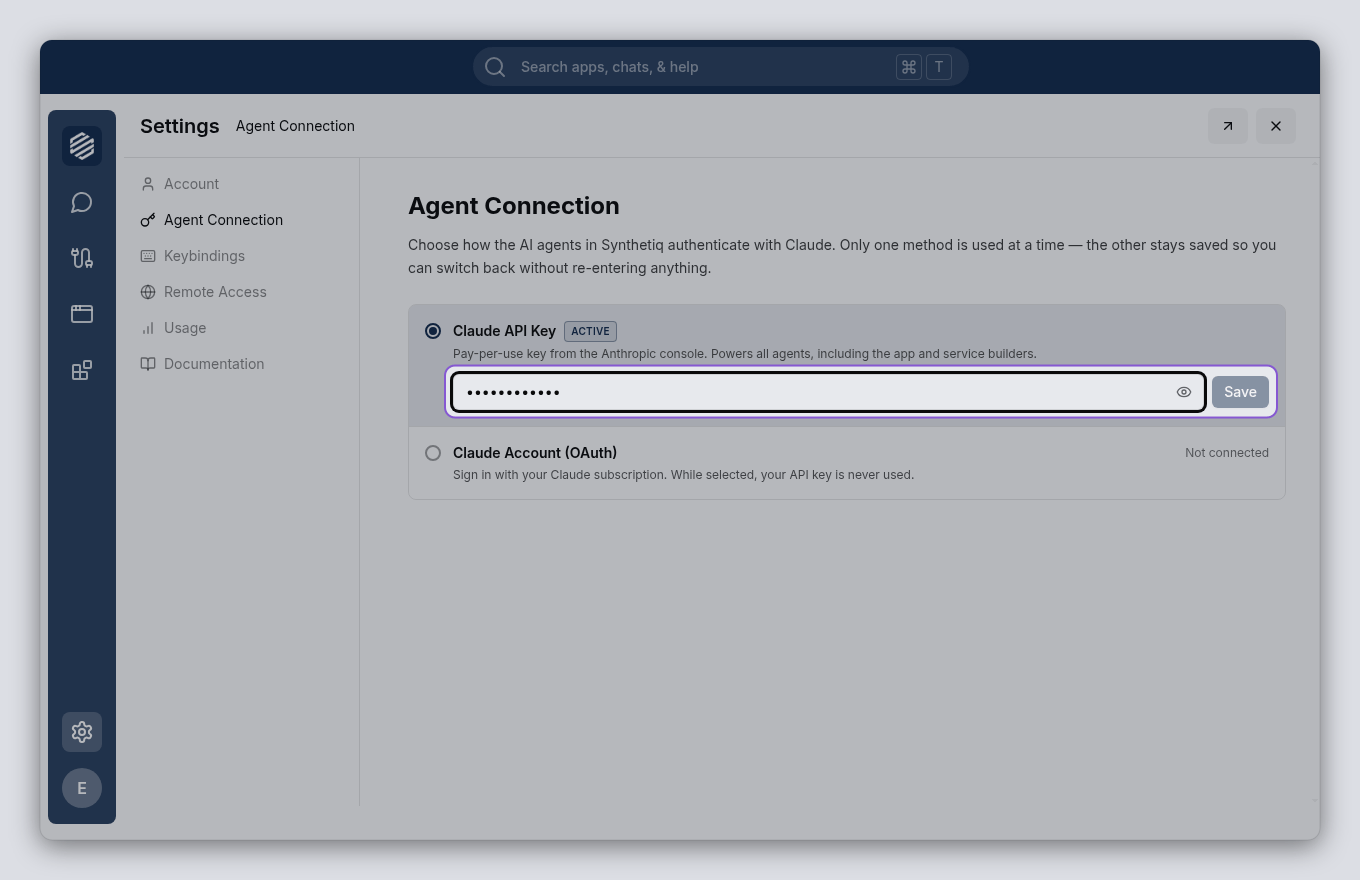
sk-ant- — into the field and click Save. The option shows an Active badge and reads In use once your key is saved.To get a key, go to console.anthropic.com, sign in, and create a new key from the API Keys section.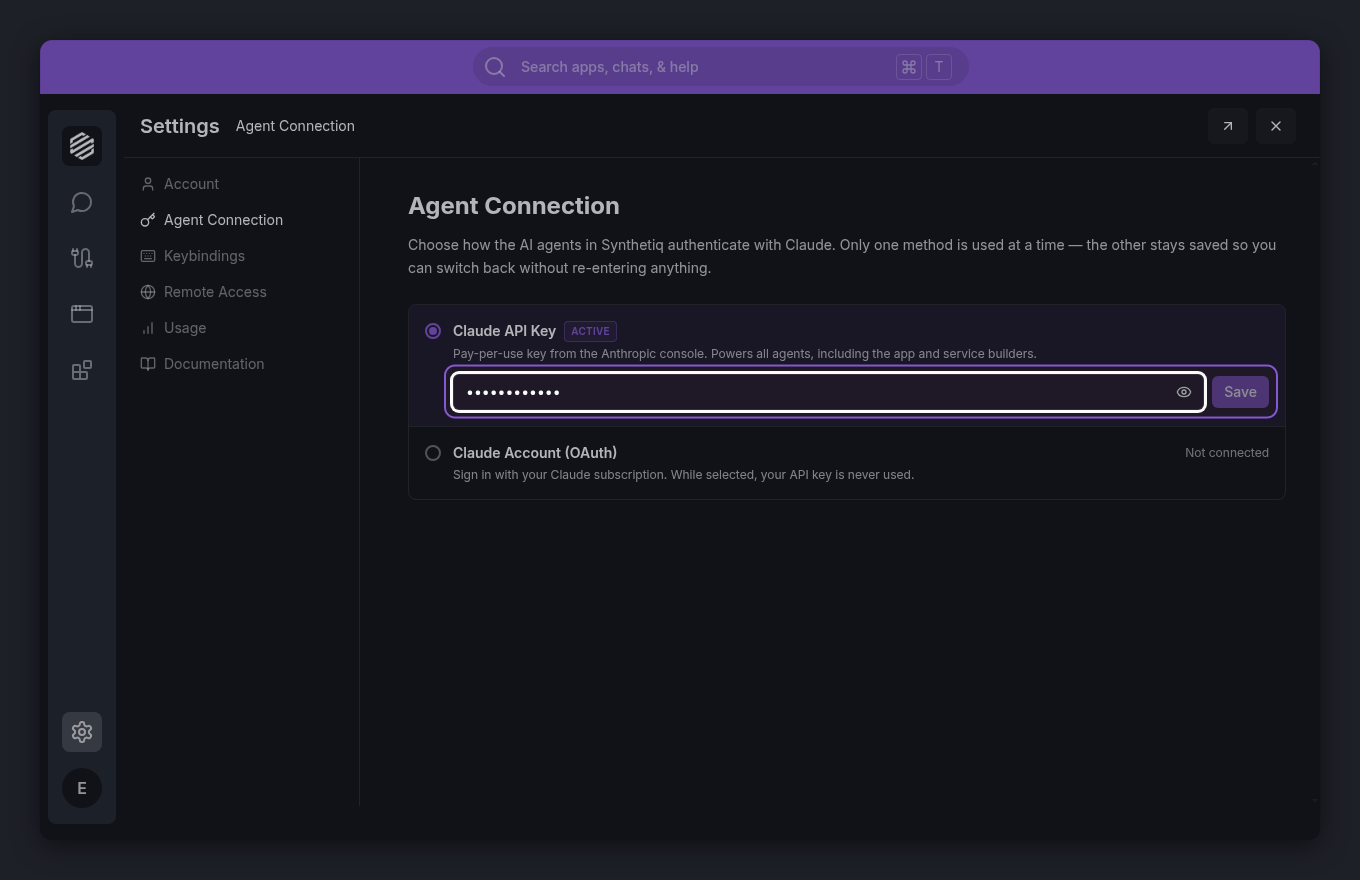
5
Or sign in with your Claude account
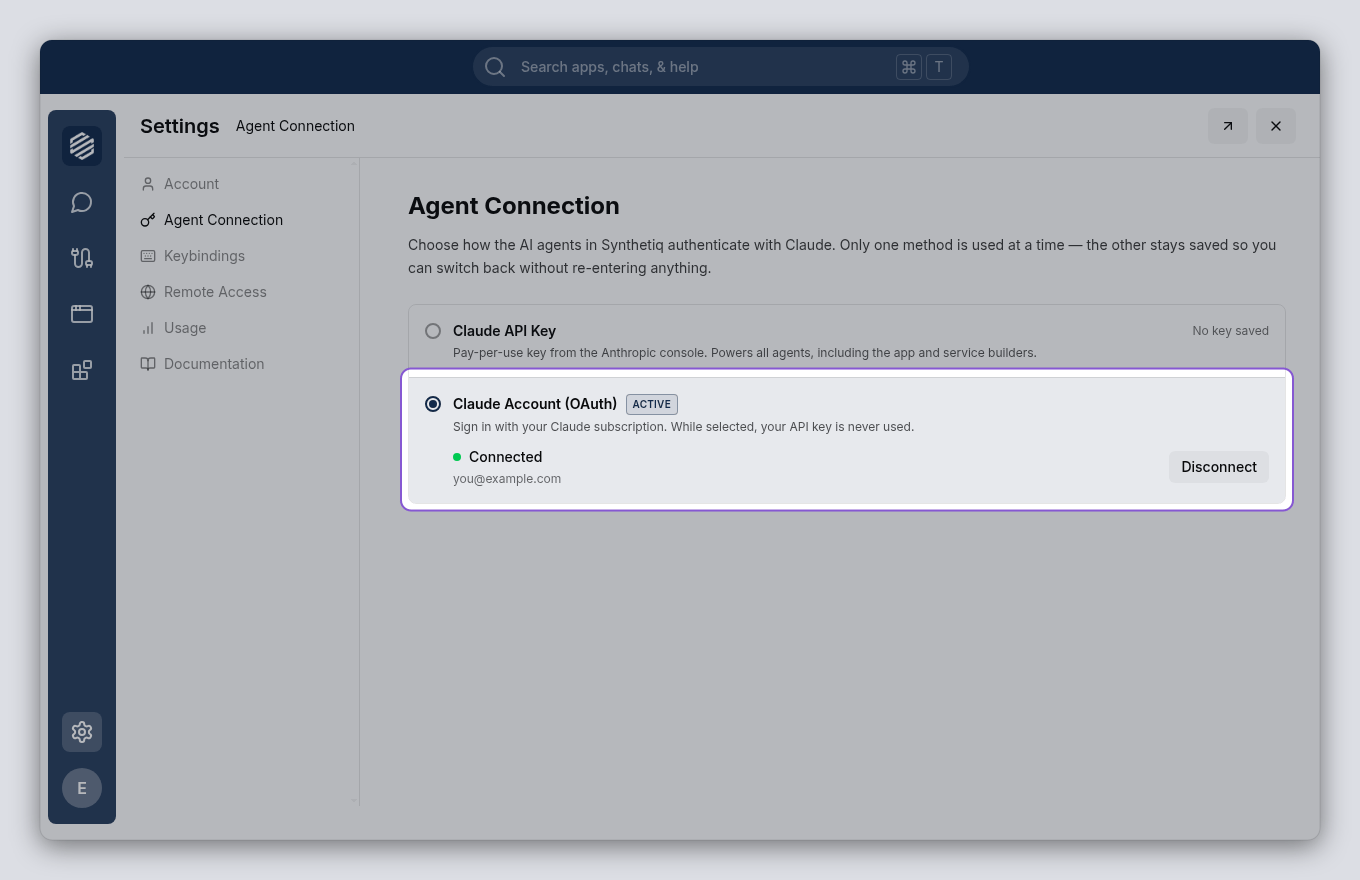
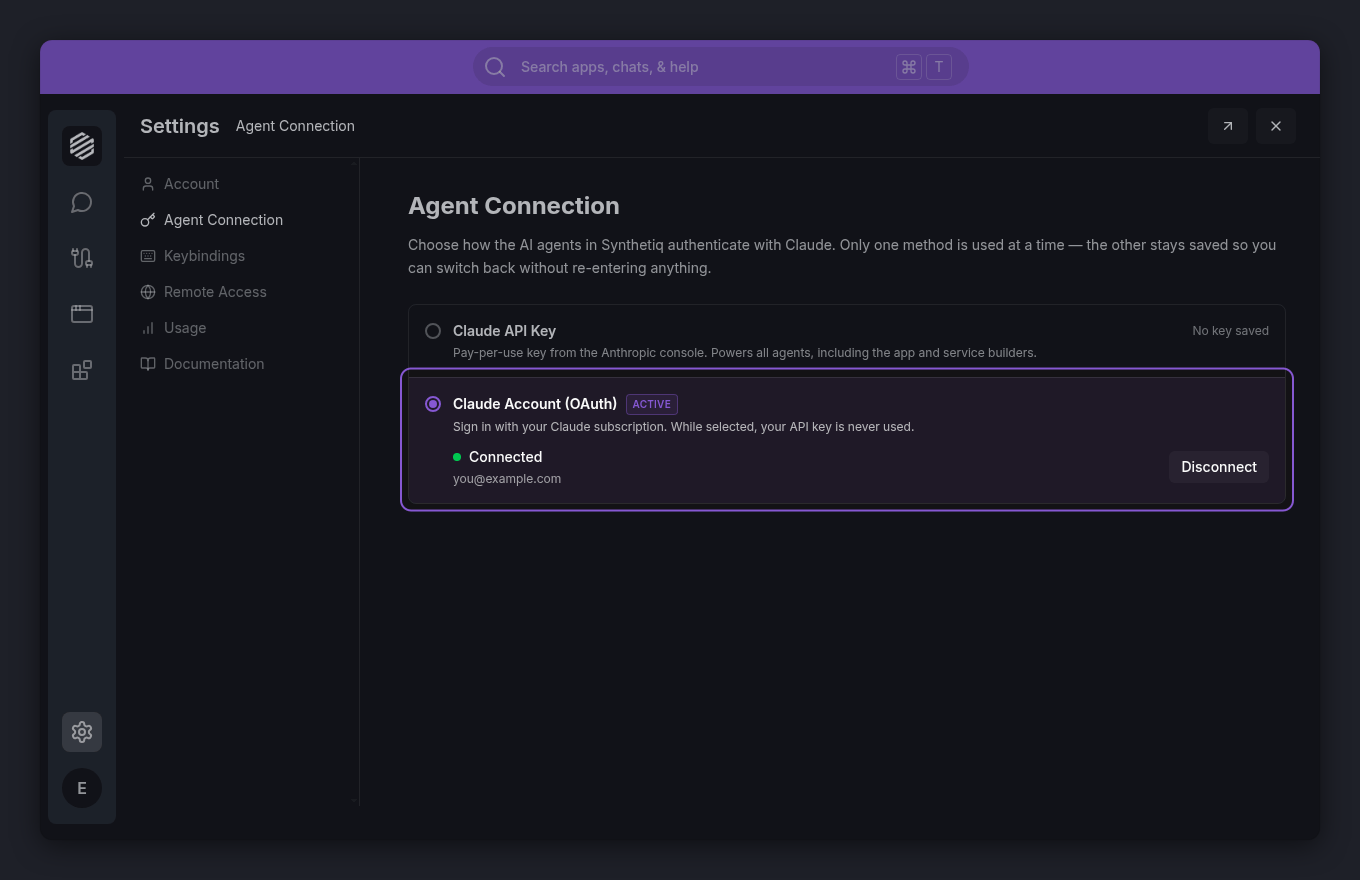
Prefer to use a Claude subscription? Click Claude Account (OAuth), then click Login with Claude and complete the sign-in. When it succeeds, the option shows Connected with your account email and an Active badge.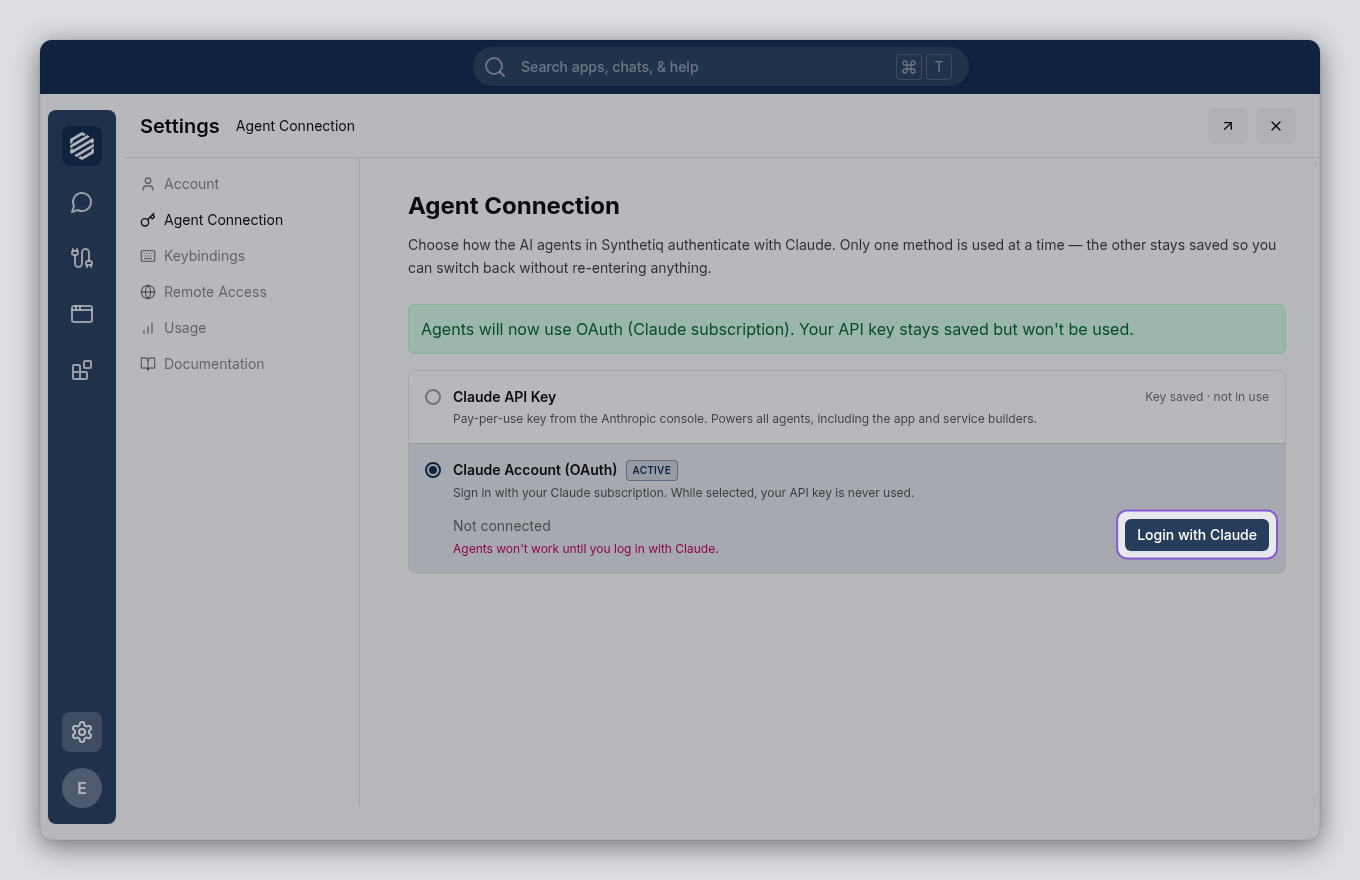
6
Send a test message
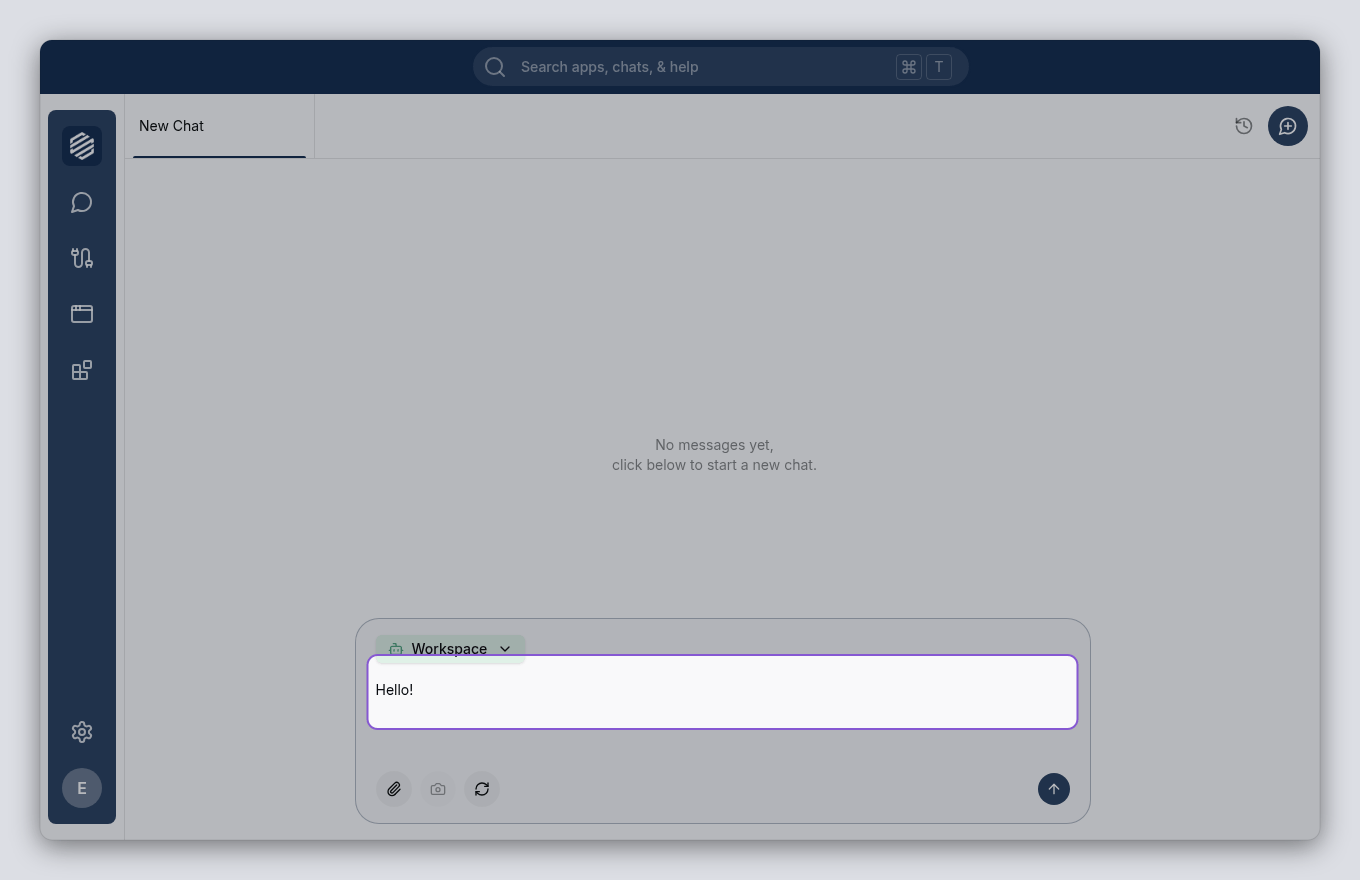
Click the chat icon or press ⌘] to open the chat panel. Type a message like “Hello!” and press Enter. The Workspace agent responds if your connection is working.